
How to move agreements
Agreements can be transferred from one customer to another or from one profile to another. This is useful when an agreement is linked to the wrong person, or when someone else takes over document management within a business or family setting. This guide explains how to move agreements individually or in bulk.
Moving agreements to another customer
You can easily transfer agreements from one customer to another.
How to move an agreement to another customer
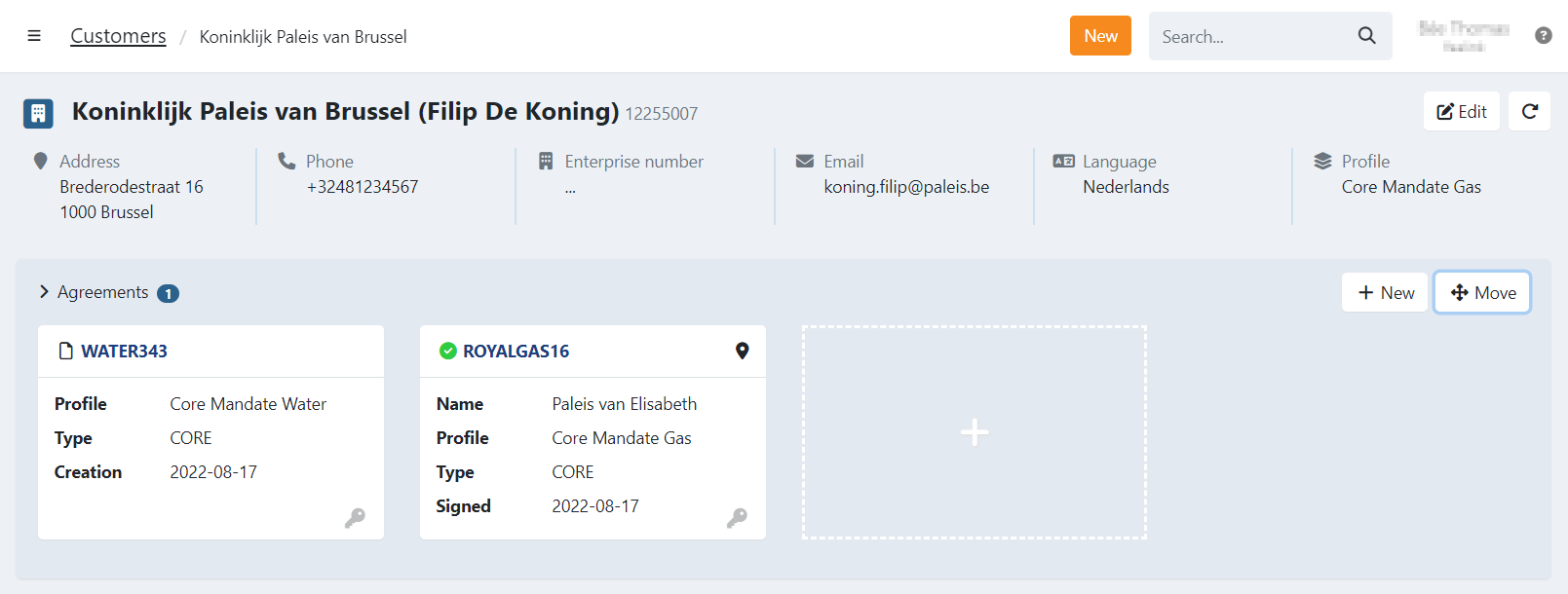
- Navigate to the customer menu
- Find your customer and open the customer details
- Open the agreements tab
- Click the move button
- Select the agreement you want to move
- Find or create the new customer
- Click move to move the agreement
In the events of the agreement you will see that the owner was changed, including the reference to the old customer.
What changes after the move
- The agreement keeps its original registered details such as (company) name, address, and mandate reference.
- Customer number, email, and mobile are updated based on the new customer's information.
- All subscriptions and transactions linked to the agreement are moved and now appear under the new customer.
- Invoices tied to transactions of the moved agreement are not automatically transferred.
- Transactions move with the agreement, but original invoices remain under the previous customer.
Moving agreements to another profile
Agreements can also be moved between profiles, either within the same customer or across different customers.
How to move an agreements to another profile
- Navigate to the agreement overview menu
- Find your agreement and open the agreement details
- Click Actions in the top-right corner.
- Click the move to button
- Select the profile you want to move the agreement to
- Select yes to move the agreement
In the events of the agreement you will see that the profile was changed, including the reference to the old profile.
How to move multiple agreements to another profile at once
Multiple agreements can be moved at once from the overview page.
- Navigate to the agreement overview menu
- Filter and find your agreements
- Click Actions in the top-right corner.
- Click the move to button
- Select the profile you want to move the agreements to
- Select yes to move the agreements
In the events of the agreement you will see that the profile was changed, including the reference to the old profile.