
How to create a new agreement
- Option 1: Create a new agreement via the...
- Option 2: Create a new agreement via the...
- Option 3: Create a new agreement for an ...
- Option 4: Invite multiple existing custo...
- Option 5 : Launch a conversion campaign
- More info
- Language
- Send the invitation to your customer
Show me
You can create a new agreement for both new and existing customers in different ways, depending on your workflow.
- Start from the global New button
- Start from the New button in the agreements overview
- Open the existing customer record and add the agreement from the customer details.
- Invite multiple existing customers at once
Option 1: Create a new agreement via the global 'New' button
- Click the orange global New button
- Select Agreement
- Search for an existing customer or create a new one.
- If a CRM integration is active, use Find in CRM while creating the customer.
- Select the appropriate profile.
- Complete the required fields.
- Profile : This field is prefilled as you've chosen your profile already
- Mandate reference : Depending on the settings in the options of the profile, you need to enter a unique mandate reference or this is generated automatically.
- IBAN : If you already know the IBAN
- Contract reference : If you want to refer to a specific underlaying contract
- Language : The language for the agreement
- Agent : The agent who created the invitation
- Campaign : If you want to add the invitation to a specific campaign
- Click Next.
- If custom attributes are defined on the profile, enter the relevant values.
- Click Add to create the agreement.
Option 2: Create a new agreement via the 'New' button in the agreement overview
- Navigate to Agreements in the left-hand navigation menu.
- Click +New.
- Select Agreement.
- Search for an existing customer or create a new one.
- If a CRM integration is active, use Find in CRM while creating the customer.
- Select the appropriate profile.
- Complete the required fields.
- Profile : This field is prefilled as you've chosen your profile already
- Mandate reference : Depending on the settings in the options of the profile, you need to enter a unique mandate reference or this is generated automatically.
- IBAN : If you already know the IBAN
- Contract reference : If you want to refer to a specific underlaying contract
- Language : The language for the agreement
- Agent : The agent who created the invitation
- Campaign : If you want to add the invitation to a specific campaign
- Click Next.
- If custom attributes are defined on the profile, enter the relevant values.
- Click Add to create the agreement.
Option 3: Create a new agreement for an existing customer
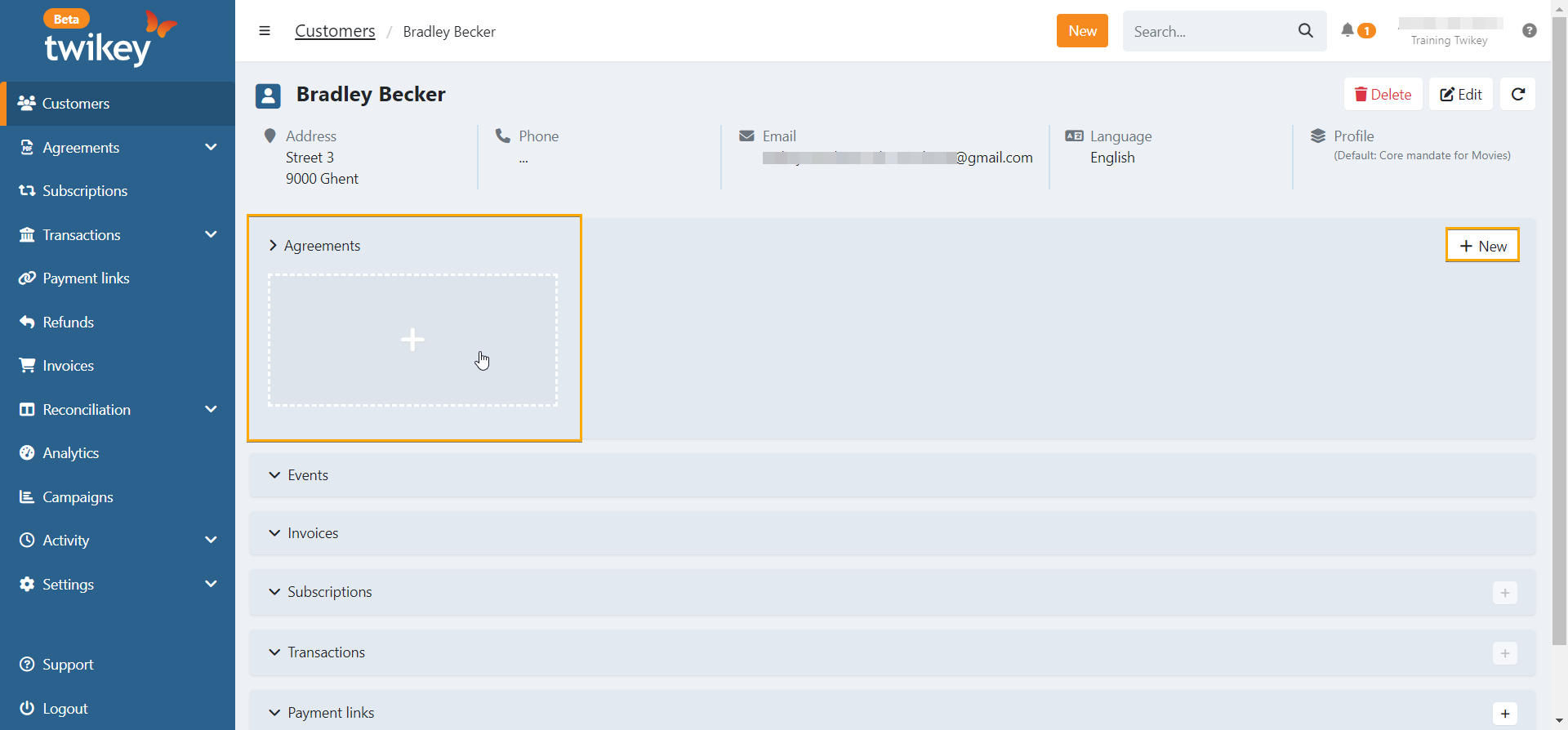
- Locate the customer using the global search bar or via the Customers tab.
- Open the customer record.
- In the agreements section, click the + button to add a new agreement.
- Select the appropriate profile.
- Complete the required fields.
- Profile : This field is prefilled as you've chosen your profile already
- Mandate reference : Depending on the settings in the options of the profile, you need to enter a unique mandate reference or this is generated automatically.
- IBAN : If you already know the IBAN
- Contract reference : If you want to refer to a specific underlaying contract
- Language : The language for the agreement
- Agent : The agent who created the invitation
- Campaign : If you want to add the invitation to a specific campaign
- Click Next.
- If custom attributes are defined on the profile, enter the relevant values.
- Click Add to create the agreement.
Option 4: Invite multiple existing customers at once
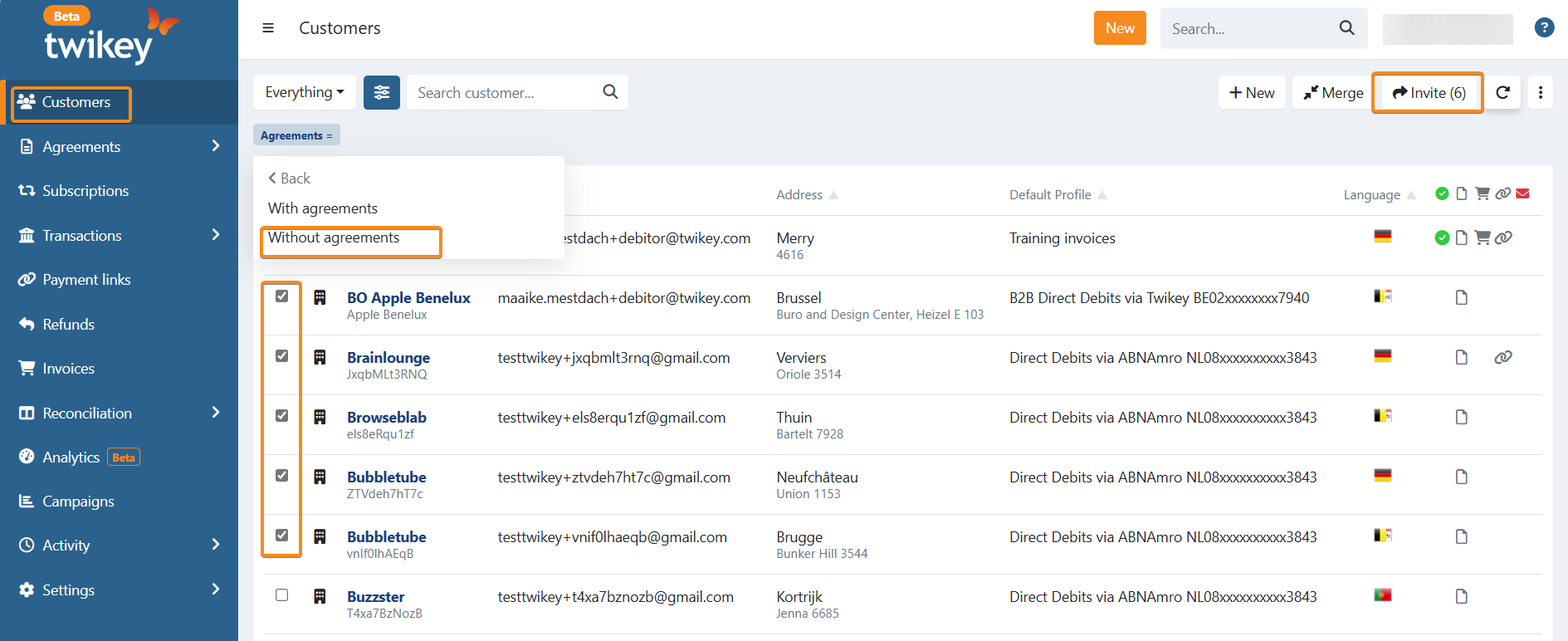
- Navigate to the Customers tab.
- Apply a filter on agreements and select Without agreements.
- Select the customers you want to invite for the same profile.
- Click Invite.
- Choose the profile and create a new campaign or select an existing one.
- Click Send to invite all selected customers.
Option 5 : Launch a conversion campaign
If you want to invite a larger group of customers to sign their mandate, you can use a dedicated conversion campaign.
This approach allows you to:
- Send structured invitation emails to a selected audience
- Follow up automatically with reminders
- Monitor who has opened, signed, or not responded
- Adjust your communication strategy based on performance
A conversion campaign ensures a consistent and scalable invitation process, especially when migrating customers or replacing existing mandates.
For detailed setup instructions, see Creating a conversion campaign.
More info
If a first transaction is created together with the agreement, its communication to the debtor defaults to Signing of <mandate reference>. If you want a different message, edit the transaction manually while it is still Open — see Edit or delete a transaction.
Language
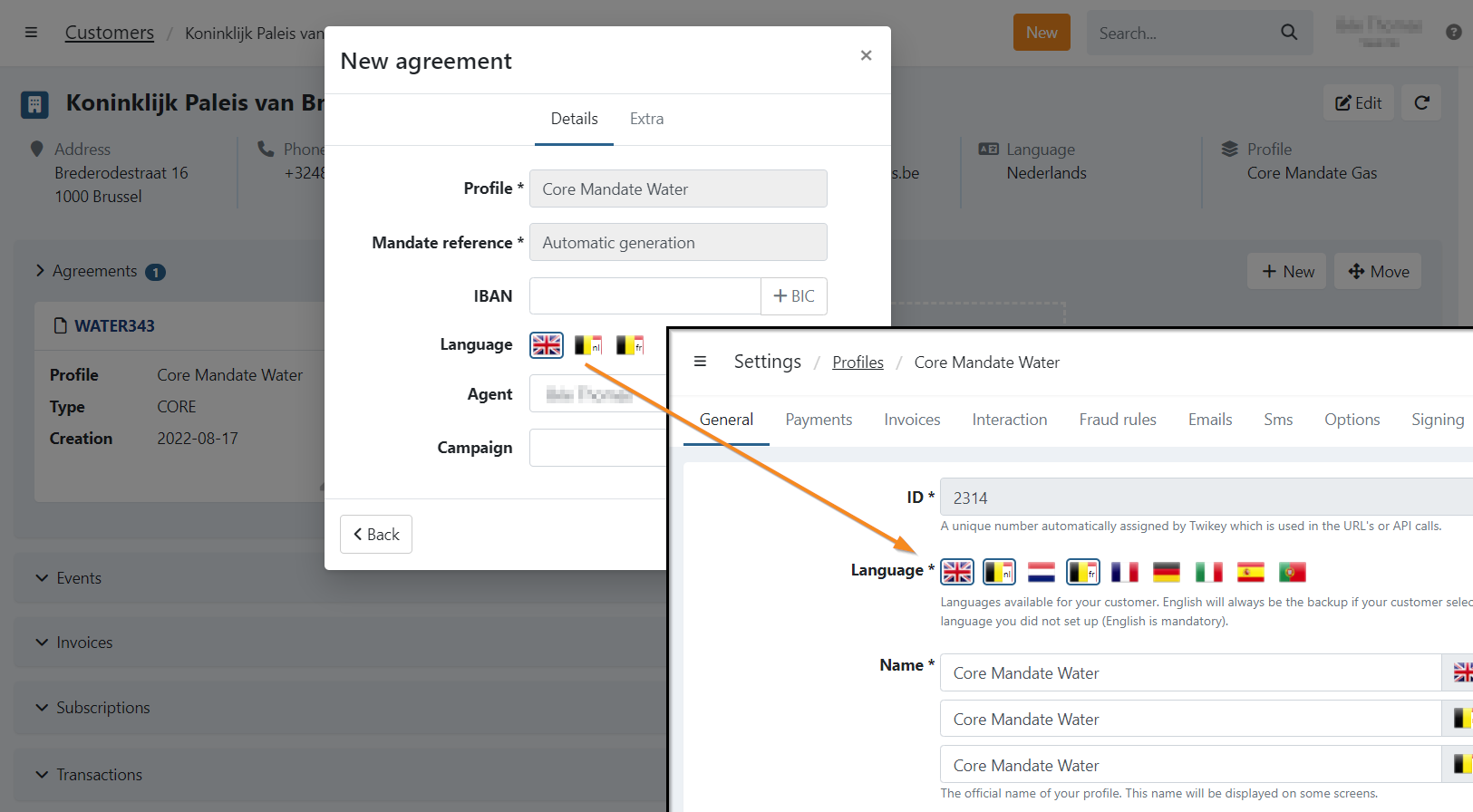
The available languages during agreement creation depend on the languages enabled in the selected profile.
All customer communication and signing pages will be displayed in the language defined on the agreement.
You can modify the language after creation by editing the agreement.
If additional languages are required, they can be activated on the profile — see Languages used on this profile.
- By default, the system selects the language of the current user when creating a new agreement.
- The customer’s language may differ from the language set on the agreement.
Send the invitation to your customer
To have the agreement signed, you need to send the invitation to your customer.
Read here about the different invitation methods.
Read here how to send the invitations by email.