
How to suspend and reactivate agreements
Show me
Suspending an agreement temporarily blocks it from being used for collection. This is useful when a customer requests a payment pause or when a dunning workflow requires it. You can suspend and reactivate agreements manually, via a scheduled task, or automatically through the dunning workflow.
How to suspend an agreement
- Navigate to Agreements in the left-hand navigation menu.
- Click the agreement to open the detail page.
- Click the pause icon in the top-right corner, or click Actions and select Suspend.
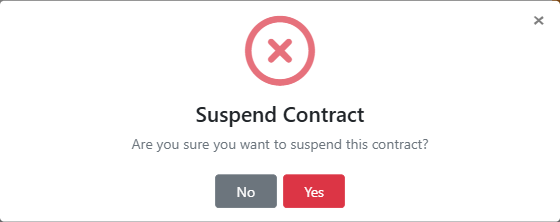
- Click Yes to confirm.
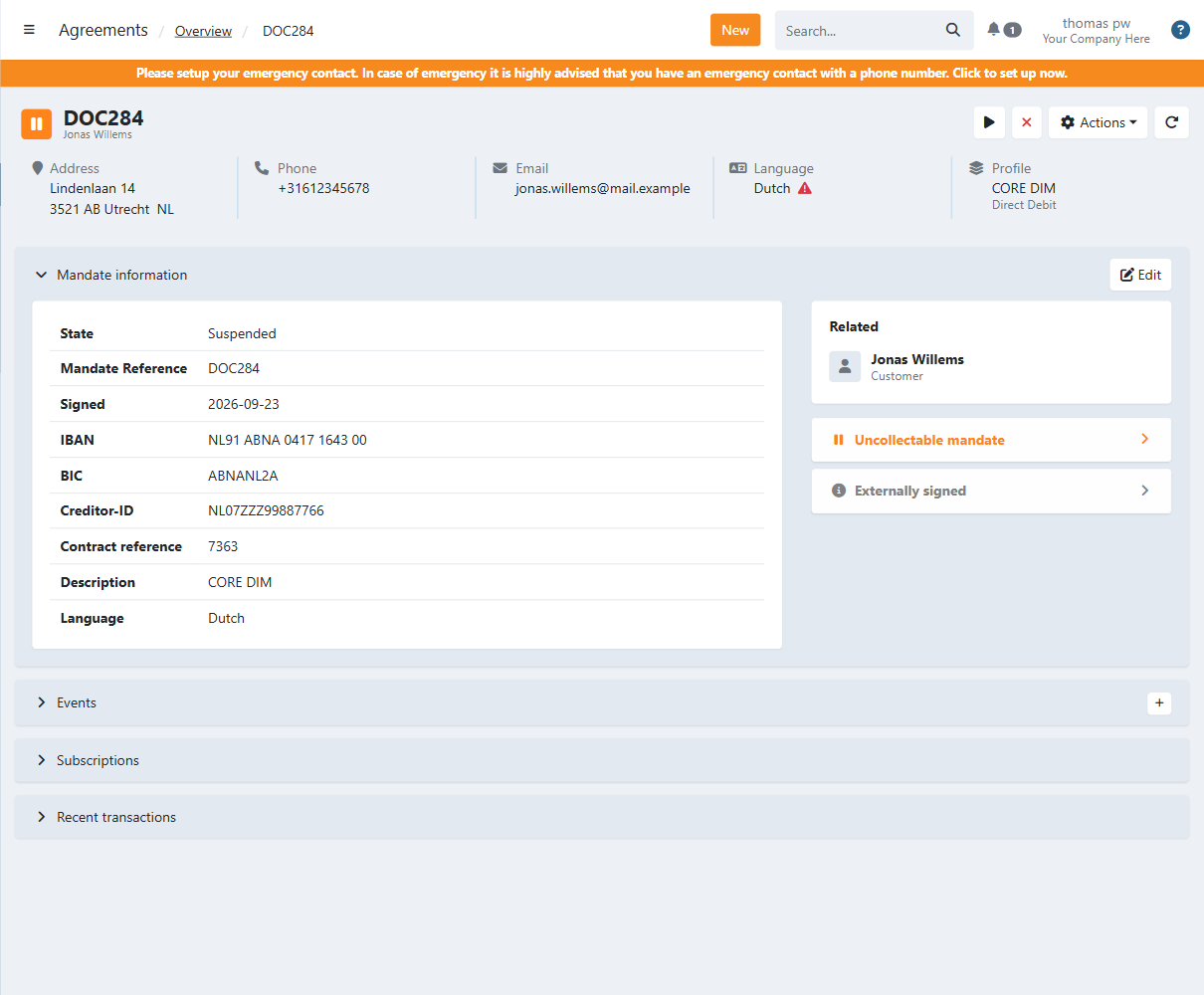
The agreement is now suspended and cannot be used for future collections. The state shows Suspended, and Uncollectable mandate appears on the right-hand side of the page.
What happens to open transactions
Transactions that were already sent to the bank continue to be processed normally. Open transactions that have not yet been sent are moved to the Uncollectable transactions batch under To be sent.
You can handle these uncollectable transactions in two ways:
- Send them to the bank manually via To be sent > Uncollectable transactions.
- Reactivate the agreement - the transactions can then be sent to the bank as normal.
What happens to subscriptions
Depending on your profile configuration, a subscription linked to the agreement may be paused or continue running. See subscription states for more information.
- Paused - No new transactions are created while the agreement is suspended.
- Not paused - A new transaction is created each time the subscription runs, even while suspended.
Reactivate a suspended agreement
- Navigate to Agreements in the left-hand navigation menu.
- Filter on Suspended.
- Click the suspended agreement to open the detail page.
- Click the play icon in the top-right corner, or click Actions and select Reactivate.
- Click Yes to confirm.
The agreement is now active again and all transactions can be collected.
You can also reactivate automatically:
- Scheduled task - schedule a reactivation on a specific date via the agreement detail page.
- Failed payment workflow - reactivate automatically when all unsettled transactions are paid.