
How to import agreements
- Template files
- Import agreements
- Profile
- How to import existing, signed agreement...
- Updates
- Language of your invitations
- Headers of the CSV file
Show me
Template files
In order to import all fields correctly, it is important to follow the structure of our template. The header fields must match exactly (see the overview here). The description of which headers represent which data and the expected input format is provided further in this article.
Import agreements
You can conveniently access the import function at the top of the page in your Twikey environment, available across all tabs.
Use the button and select Import.
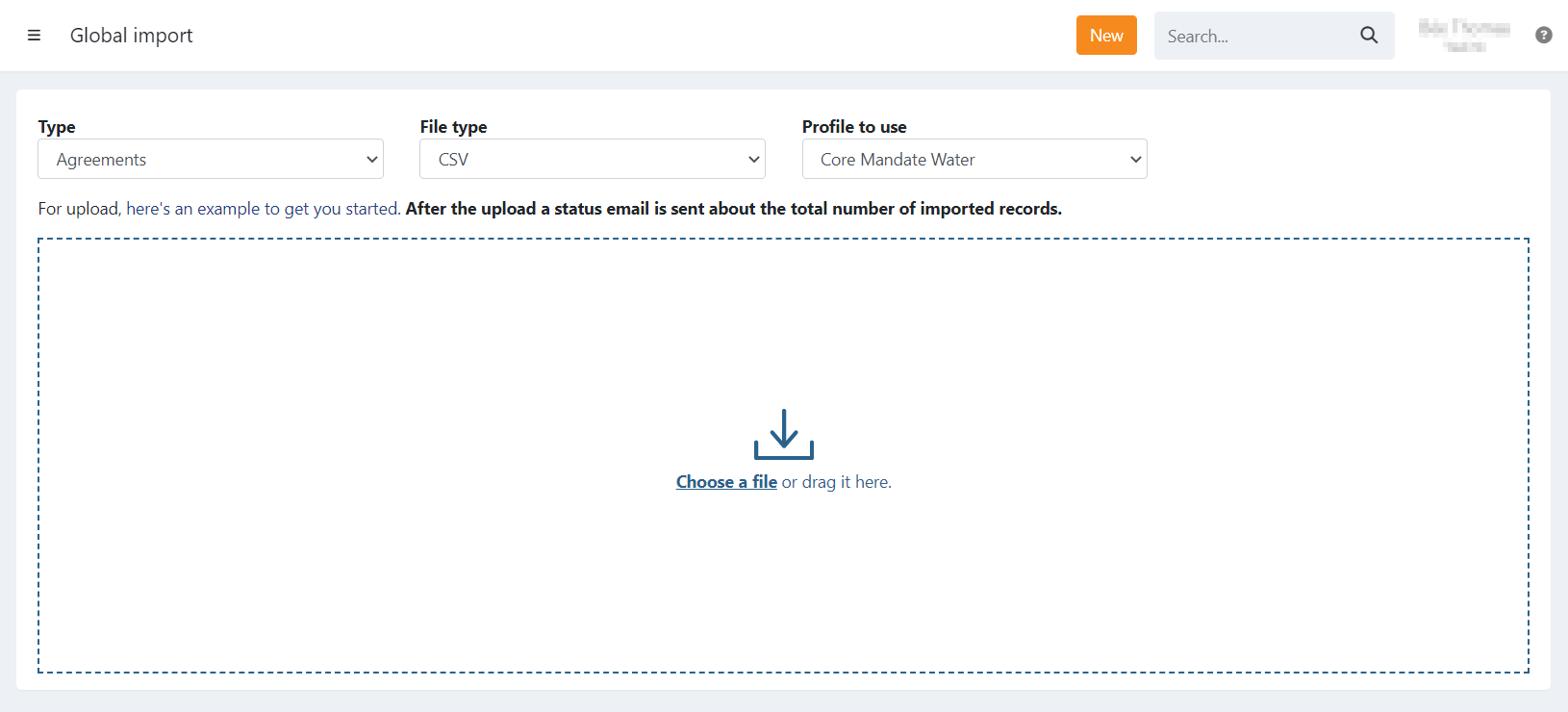
On the import page, select Agreements from the dropdown. Choose the format (CSV by default: a file format in which you can save your data (in excell fe.)) and select the applicable profile (all agreements will be imported under this profile).
Profile
When importing agreements, you must choose a profile. This will apply all the settings of the selected profile to the imported agreements (IBAN, dunning steps, signing options, interaction, emails, etc.).
If you want to import agreements in several profiles, you can:
- Import per profile: Split your import file into import files per profile.
- Import all agreements and change the profile afterwards.
How to import existing, signed agreements
If you have signed mandates that you want to import into Twikey, it is possible to import them as signed. When importing, toggle on the option 'Import mandates as signed'.
After importing, it is possible to add a PDF.
It is also possible to mark as signed afterwards (per agreement, not in bulk).
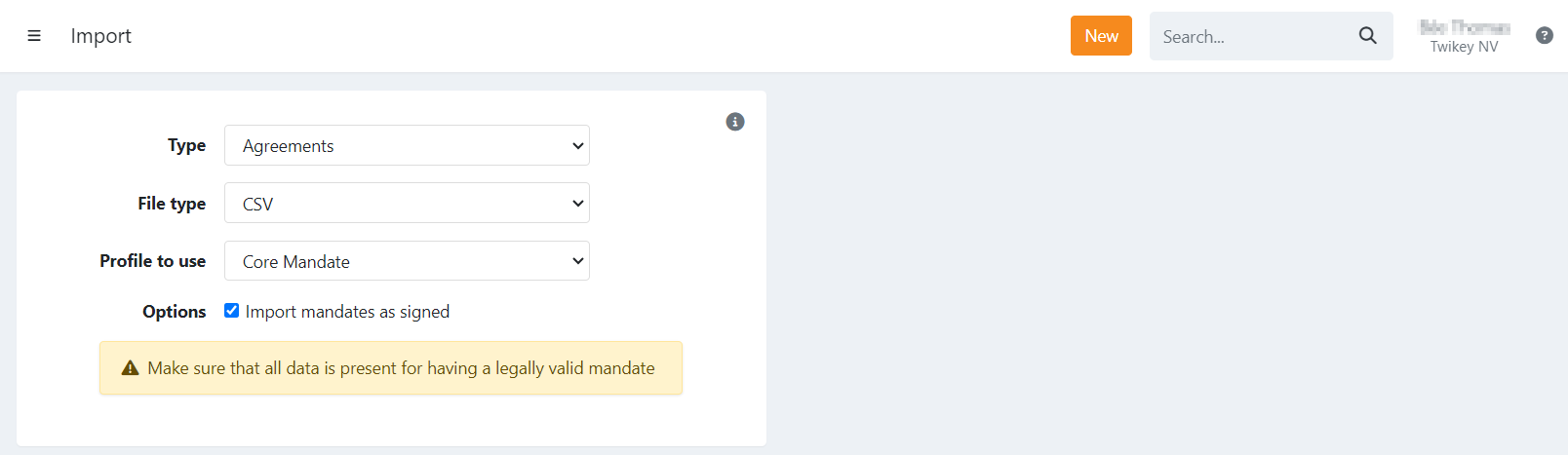
When using the mark as signed option:
- The headers mandateNumber and IBAN are required (BIC is advised when using foreign IBAN accounts).
- The header signDate can be added (optional) to set a specific sign date for the mandate. Without this header, the sign date defaults to the current date of import. Some banks require that the signature date of the mandate (for B2B) match the sign date in their system; otherwise, collections could be refused.
Updates
You cannot import a file using the same mandate references to update existing ones.
If you wish to update mandates in bulk, you can do so by importing again only after deleting the previously imported mandates. Note that deletion is only possible if the mandates are not signed, and have never been signed.
Language of your invitations
For most imports the language of the invitation is based on the language and country. In case the country is not passed use a specific language to ensure the right email is sent.
For the import of invoices a specific language is always required.
- en: English - default language.
If a language is not found, the system will fall back on the default, English.
For example: A typo, or the profile you are using does not have the specific locale 'on' -> English will be used
specific locales:
- nl: Dutch (Belgium)
- fr: French (Belgium)
- nl_nl: Dutch (Netherlands)
- fr_fr: French (France)
- de: German
- it: Italian
- pt: Portuguese
- es: Spanish
Headers of the CSV file
| Field Name | Description | Constraints & Behavior / Additional Info |
|---|---|---|
| Required Fields | At least one of these values is required to be able to import the file. | |
customerNumber | Unique identifier for a customer | Can be used to reference an existing customer. If it does not exist in your Twikey database yet, a new customer is created when importing the mandate. Can only appear once in the file. |
email | The customer's email (only one) | Can be used to reference an existing customer. If the email does not exist, a new customer is created (only if no customerNumber is filled in). If a customerNumber is filled in, the mandate is imported on that existing customer. |
contractNumber | The contract number of the agreement (not the mandate number). | When left empty, the contract reference defined on your profile is used. This is what is displayed on the PDF as the contract. |
companyName | Name of the company. | If the invoiced entity is a person, this field should be left empty. |
| Optional Fields | ||
l | Language / locale. Used for communication towards the end-customer. | Accepted values: en, nl (BE), nl_nl (NL), fr (BE), fr_fr (FR), de, it, es, pt. If left blank or cannot be identified, English is set as the default. |
mandateNumber | Mandate reference. | By default, this is automatically generated. If you enter your own, it must be unique and cannot start with the profile's mandate prefix. Must also be unique in the file. |
lastname | The last name of the customer. | |
firstname | The first name of the customer. | |
mobile | Phone number. | Number in international format is preferred (e.g., +31, +32, +33, ...). |
coc | CoC number (Chamber Of Commerce) or VAT-number (format: BE0123456789). | If the invoiced entity is a person, this field should be left blank. |
address | Street and number of the address. | |
city | City of the customer. | |
zip | Postal code. | |
country | Country ISO format (2 characters), for example BE, NL, FR. | Reference: List of ISO 3166 country codes. |
iban | IBAN number. | |
bic | BIC. | Advised to be added when using foreign IBAN accounts. |
campaign | Add the agreement to a specific campaign. | By default, a campaign is created as upload + the date of import, e.g., 'upload20230202'. |
Additional:
You can also include any custom headers. If you defined the same custom attribute on the selected profile, the value will be stored in the agreement's extra attributes. Furthermore, you can then include those attributes in your emails to the end-customer or use them for your own references.