
Agreement references - Setup and management
- For SEPA Direct Debit Mandates
- What makes a unique valid mandate refere...
- Automatic mandate reference generation (...
- Manual mandate reference assignment
- Impact on profile state
- Editing existing mandate references
- How to edit a CORE mandate reference
Every mandate (agreement) generated in Twikey requires a unique reference number, also known as a mandate reference. This article explains what agreement references are, why they're important, and how to configure them in Twikey.
For SEPA Direct Debit Mandates
When using SEPA Direct Debit, this reference is officially called the Unique Mandate Reference (UMR).
According to SEPA regulations:
- The UMR is mandatory for all SEPA Direct Debit mandates
- It must be unique - no two mandates can share the same reference
- It remains constant for the entire lifetime of the mandate
- It must appear on every transaction linked to that mandate
- Maximum length is 35 characters
- It must be communicated to the debtor before the first collection
What makes a unique valid mandate reference?
According to SEPA standards, a valid UMR:
Allowed characters:
- Letters:
a-zandA-Z - Numbers:
0-9 - Special characters:
/ - ? : ( ) . , ' +and space
Important restrictions:
- Special characters cannot be the first or last character
- Maximum 35 characters
- Must remain the same throughout the mandate's lifetime
- Should be unique across both SEPA Core and SEPA B2B schemes
What to avoid:
- Personal sensitive data (bank account details, passport numbers, payment card numbers)
- Characters outside the allowed set (e.g.,
@,á,Ü) - Using the same reference for multiple mandates
Automatic mandate reference generation (Recommended)
With automatic generation, Twikey creates unique references for you using a prefix + auto-incrementing number system.
How it works
Example: If your prefix is TWIK, Twikey generates:
- First mandate:
TWIK1 - Second mandate:
TWIK2 - Third mandate:
TWIK3 - And so on...
Important behavior:
- Numbers increment even if a customer doesn't sign the document
- This is intentional - the customer can still sign later, and the reference must remain unique
- Once assigned, a number is never reused
Viewing the prefix of a profile
- Navigate to settings > profiles
- Choose a profile and click it
- Locate the Prefix field
- Do you wish to use the prefix for this profile, please contact Twikey support
Using leading zeros
You can control the number length by using leading zeros in your prefix.
Format: YourPrefix@0Xd where X is the total number of digits
Examples:
| Prefix Format | Generates | Explanation |
|---|---|---|
ACME@05d | ACME00001, ACME00002, ... | 5-digit numbers with leading zeros |
SMITH@04d | SMITH0001, SMITH0002, ... | 4-digit numbers with leading zeros |
INV@06d | INV000001, INV000002, ... | 6-digit numbers with leading zeros |
How it grows:
ACME00001→ACME00010→ACME00100→ACME01000- Total character count remains the same as numbers increase
Manual mandate reference assignment
If you prefer complete control over your mandate references, you can assign them manually for each document.
When to use manual assignment
Choose manual assignment if you:
- Have an existing numbering system you want to maintain
- Need to match references with external systems
- Require specific formatting not possible with auto-generation
- Want to include contract numbers or customer IDs in references
Enabling manual mandate reference assignment
- Navigate to your profile settings
- Navigate to the Options tab
- Check the box: "Never generate a document reference"
- Save your changes
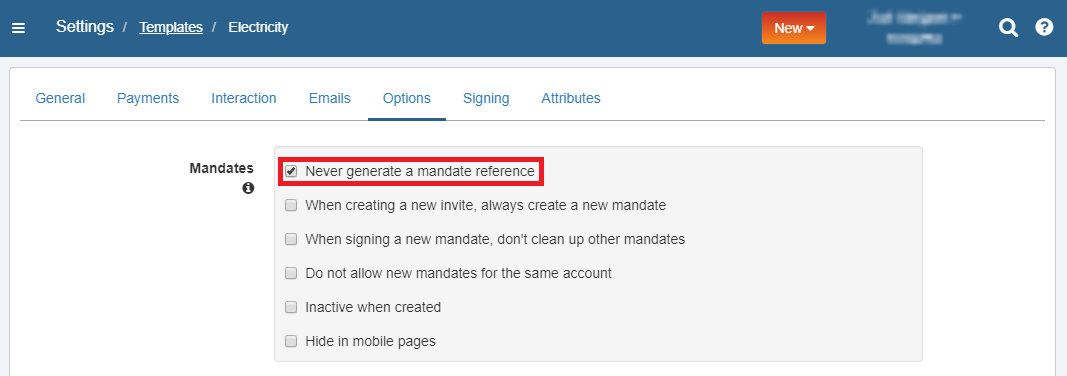
Creating mandate with manual references
When you create a new invite or mandate, you'll see a field to enter your reference:
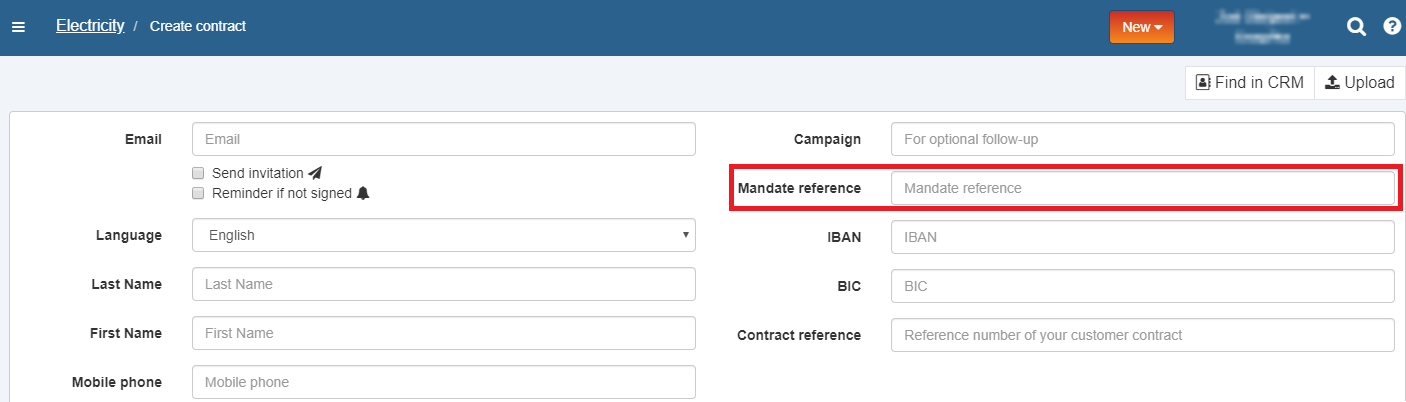
Important: You are responsible for ensuring each reference is unique and meets SEPA requirements.
Impact on profile state
Your profile state must be set to "Available" rather than "Published" to be able to use manual references since end-customers should not be able to choose their own mandate reference.
For more information about profile states, see About Profiles.
Editing existing mandate references
You can modify document references after they've been created, but the rules differ depending on the mandate type and the state of the mandate.
Prepared mandates vs signed mandates
- Mandates in prepared state can always be changed.
- Mandates in signed state can only be changed for CORE mandates.
CORE mandate references
Can be edited:
Yes, both auto-generated and manually assigned references can be changed.
Customer notification:
When you change a CORE mandate reference, we automatically send an email notification to your customer informing them of the change. This ensures transparency and proper record-keeping on both sides. You can disable the mandate update notification email if needed. See Profile Email Settings for instructions.
B2B mandate references
Can be edited:
Yes, but only while the mandate is in Prepared status. Once a B2B mandate is signed, editing its reference is not possible.
Alternative solution:
If you need to change the reference of a signed B2B mandate, create a new B2B mandate with the correct reference and cancel the old one.
This restriction follows from SEPA's stricter regulatory requirements for business-to-business direct debit agreements.
How to edit a CORE mandate reference
Method 1: Through the Agreements Screen
- Navigate to the mandate details page
- Click the Edit icon
- Enter the new mandate reference in the details menu
- Click Save to apply your changes
- View the mandate's Events tab to see the change history and the previous reference number
Method 2: Via API
If you're using API integration, you can update mandate references programmatically.
See our API documentation for details.