
B2B paper signing for non-connected banks
- When to use a paper signing flow
- The debtor's paper fallback is on by def...
- The mandate still needs to be registered...
- Processing a returned signed document
- Print the document yourself
This article covers the full manual (paper) signing process for B2B mandates: the debtor's paper option — usually already active by default — what still needs to happen at the bank, processing the returned document yourself in Twikey, and — as an exception — printing and sharing the document yourself.
Their bank still has to register the mandate before it can be used, whichever country the debtor is in. This article is how you confirm that registration yourself, from a document. If you'd rather have Twikey confirm it for you automatically instead, see B2B automated validation for non-connected banks — same requirement to register with the bank, but there Twikey confirms it for you instead of you verifying a returned document yourself.
If you already have the signed document back and just want to know how to register it, go straight to How to mark an agreement as signed.
When to use a paper signing flow
A paper flow is typically needed for B2B mandates when the debtor's bank isn't affiliated for electronic signing or when the debtor is not able to sign digitally. In these cases, the mandate is signed on paper and the debtor's bank still needs to register it afterwards — this applies regardless of whether the document was printed by you or by the debtor.
See What is a SEPA B2B Direct Debit mandate for the full decision flowchart, showing how this path fits alongside digital signing and automated validation.
You can also always print the document yourself and share it with the debtor on paper — see Print the document yourself at the end of this article. Treat this as the exception rather than the default, though: digital signing, with the automatic paper fallback described further down, should remain the norm.
The debtor's paper fallback is on by default
You don't decide when the debtor sees the paper option — Twikey offers it automatically, and in most cases it's already active for your profiles without you having to do anything. By default, On paper only appears to the debtor as a fallback — when digital signing isn't available to them, or a signing attempt fails.
If the option is ever disabled for a profile, here's how to turn it back on:
- Navigate to Settings > Profiles in the left-hand navigation menu.
- Select the B2B profile you want to configure.
- Open the Options tab.
- Scroll down to the The customer can section.
- Check the box next to Can print the document and upload it (your approval is needed for activation).
- Click Save.
Once enabled, the debtor can print the mandate, sign it by hand, and upload it — but it isn't activated until you approve it (see Processing a returned signed document below).
The mandate still needs to be registered at the bank
A B2B mandate isn't complete until the debtor's bank has registered it — Twikey doesn't grant that on your behalf just because a document was signed and uploaded.
If the document you receive back doesn't show proof of that registration — a bank stamp and signature alongside the debtor's own — leave Debtor bank signed the agreement unchecked when marking the mandate as signed. The agreement then moves to Awaiting bank approval, and Twikey (or you) follows up with the bank before it becomes Signed.
Twikey does not automatically check B2B bank registrations in a paper flow — see B2B automated validation for non-connected banks for the automated alternative.
What do you need to check on the document?
When you receive the document back from the debtor, it's advisable check it before processing it further. This is to check if the mandate has been correctly registered at the bank — a missing information or incorrect registration can lead to failed transactions later on.
Check the following before marking the agreement as signed:
- All information fields — All information fields on the document, such as names, account details, etc are filled in correctly.
- Debtor's signature — The debtor must have signed the document.
- Bank's stamp and signature — The debtor's bank must have stamped and signed the document to confirm registration.
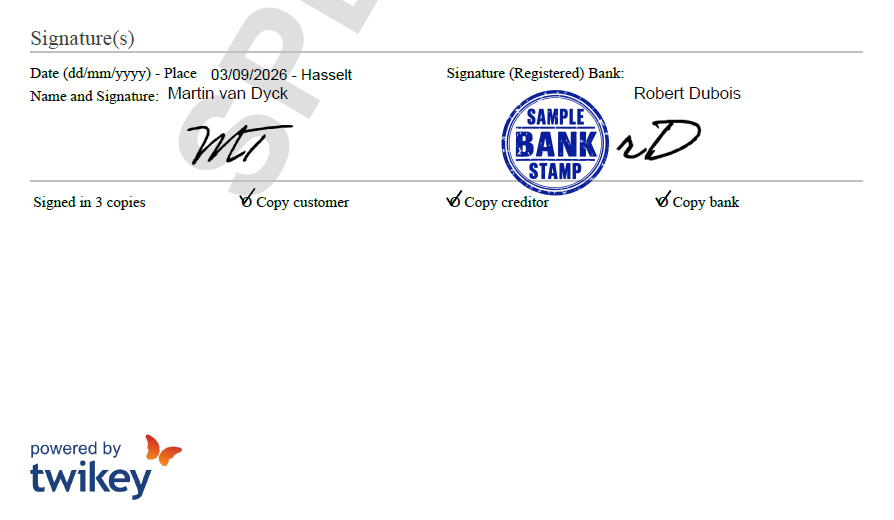
Processing a returned signed document
Once the debtor has printed and signed the document, they can return it in one of two ways: by uploading it themselves, or by sending it to you directly (for example by post or email). Either way, you process the document yourself in Twikey afterwards — Twikey does not mark it as signed automatically. After sending the invite, the debtor receives the following email with instructions:
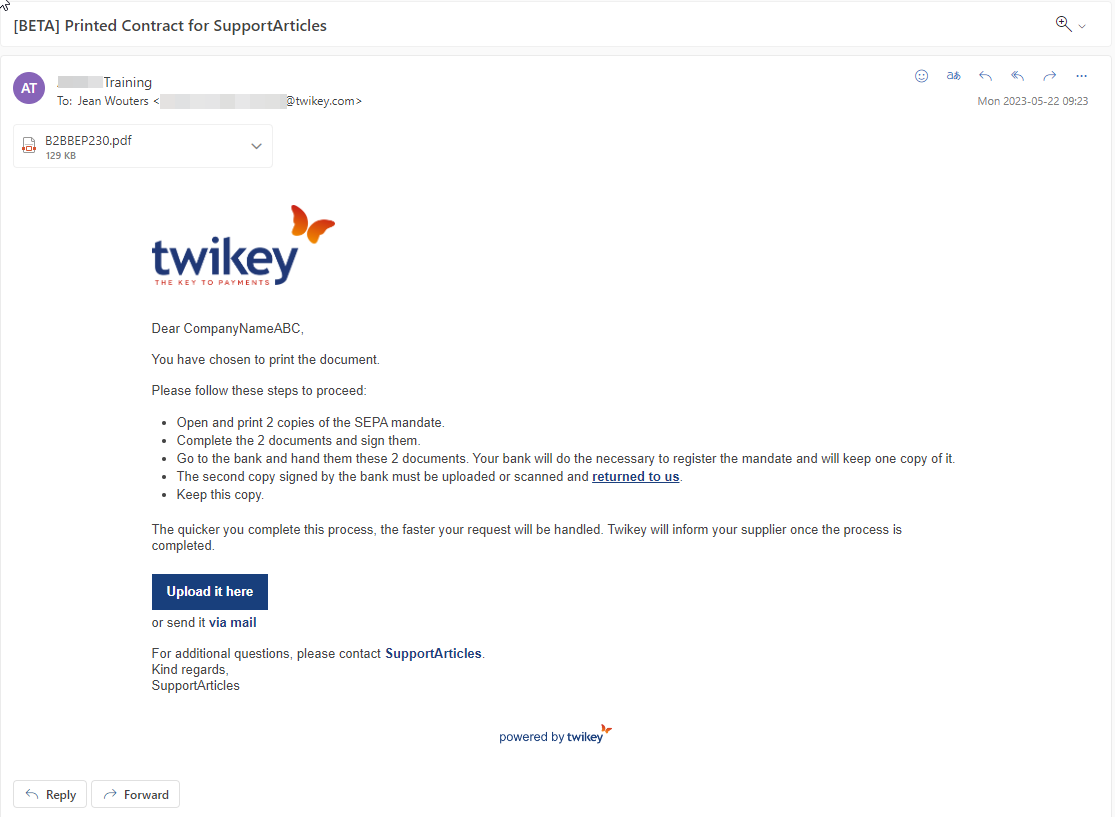
See The mandate still needs to be registered at the bank above for what to do if the bank hasn't signed off yet.
If the debtor uploaded the signed document themselves:
- Navigate to Agreements in the left-hand navigation menu.
- Find the agreement with a pending upload — these are recognizable in the overview by the upload-pending icon.
- Click the agreement to open the detail page. The uploaded file is now attached as a PDF document on the agreement.
- Check that all required signatures and information are present on the document — including a stamp and signature from the debtor's bank.
- Click Mark as signed.
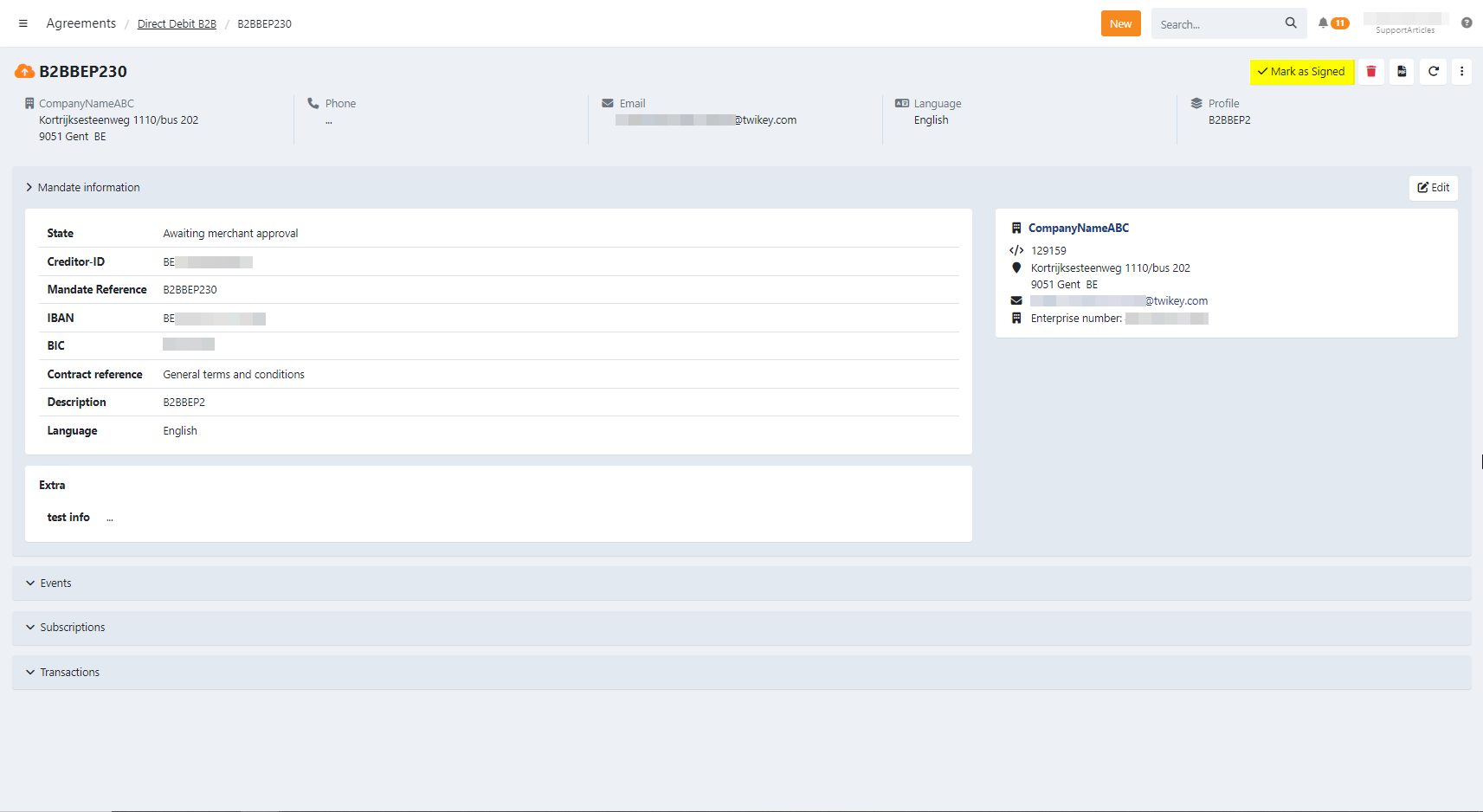
- Confirm the following:
- All required persons signed the document.
- All required information is filled in, including the bank's stamp and signature.
- Debtor bank signed the agreement — this is your call, not an automatic check: checking it tells Twikey to trust that the bank has already registered the mandate, and the agreement becomes Signed immediately (implicit — based on your word, not a verified confirmation). If the registration turns out not to have actually happened, the mandate can still fail later. Leave it unchecked instead if you want Twikey to verify with the bank first: the agreement then moves to Awaiting bank approval and is sent to the bank for validation before becoming Signed.
- Notify debtor — optional, sends them a confirmation email.
If the debtor sent the signed document to you directly:
- Navigate to Agreements in the left-hand navigation menu.
- Click the agreement you received the document for to open the detail page.
- Click Mark as signed.
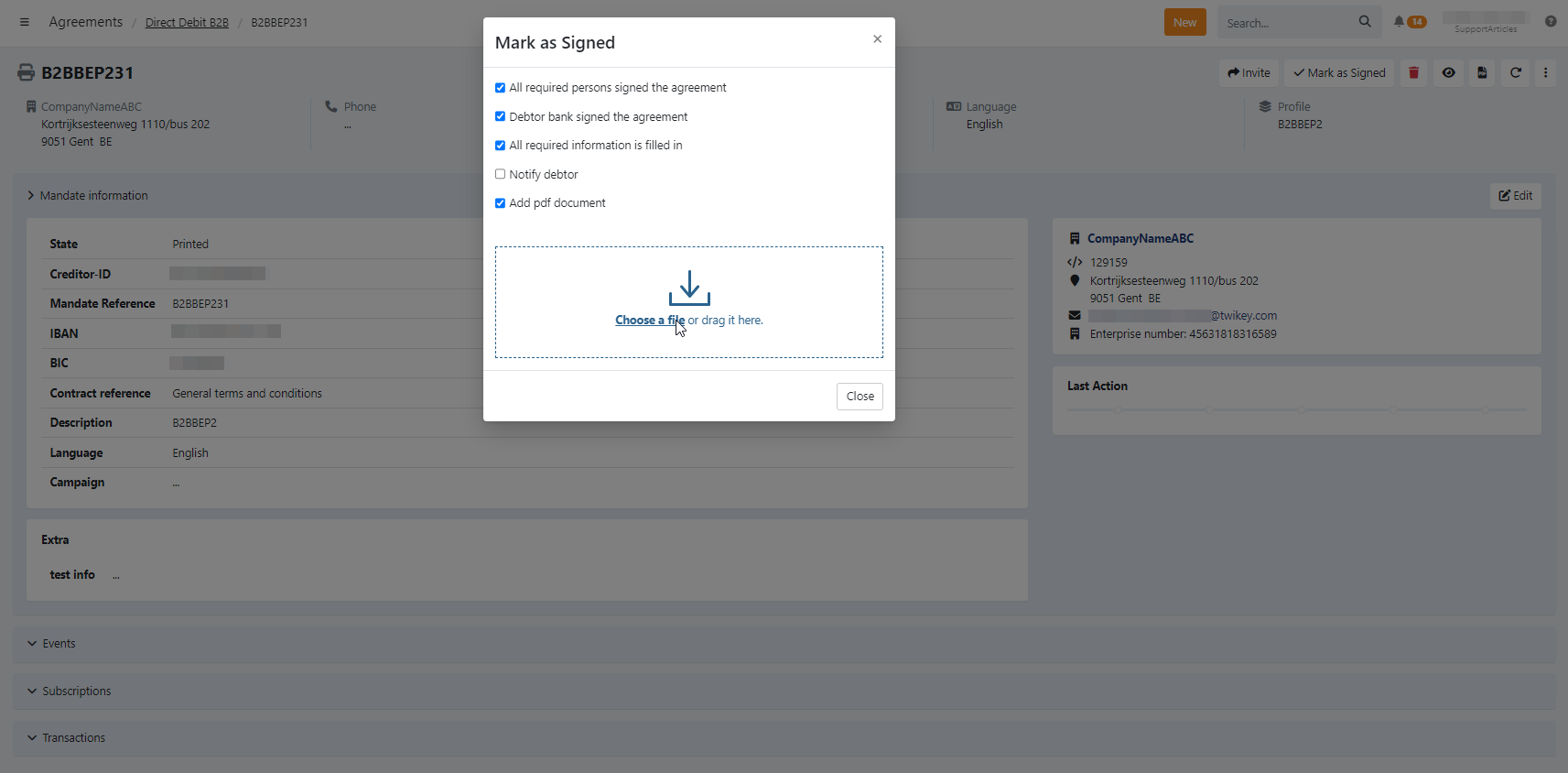
- Confirm the following:
- All required persons signed the document.
- All required information is filled in, including the bank's stamp and signature.
- Debtor bank signed the agreement — check it only if the bank has already registered the mandate (Signed immediately); leave it unchecked to have Twikey verify with the bank first (Awaiting bank approval).
- Notify debtor — optional, sends them a confirmation email.
- Choose Upload to attach the file to the agreement in Twikey, or Keep in my archive to mark the agreement as signed without uploading the file.
See How to mark an agreement as signed for how to set it.
Print the document yourself
Rather than relying on the debtor's own paper fallback, you can print and share the document with the debtor yourself, from the invite screen. Use this as the exception, not the default — digital signing, with the automatic paper fallback described above, should remain the norm.
- Open the invite screen (see Inviting and reminding a debtor to sign your document).
- Navigate to the Print tab.
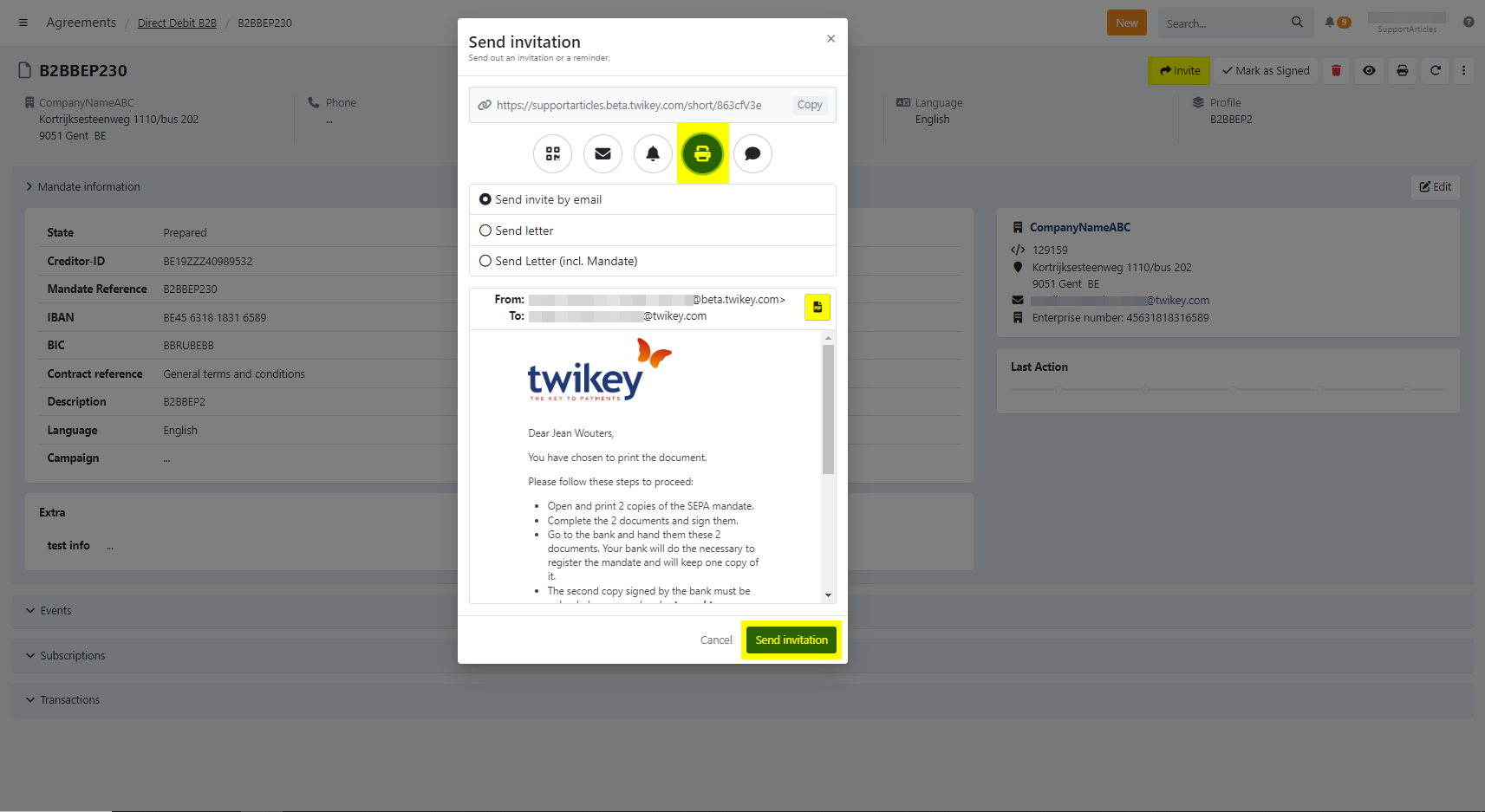
- In the email preview, click the download icon next to the sender and recipient address to get the PDF.
- Print the PDF and have the debtor sign it in person, for example at your agency.