
How to import transactions / refunds
Show me
You can import transactions using a CSV file in two different ways:
Anywhere in your Twikey environment, you can access the import function on top of the page.
- Global Import:
- Anywhere in your Twikey environment, you can access the import function at the top of the page.
- Click the button and select Import.
- On the import page, select "Transactions" from the dropdown menu, choose the format (CSV), and upload your file.
- The transactions will automatically be placed in a batch according to their profile, where they can be prepared for collection.
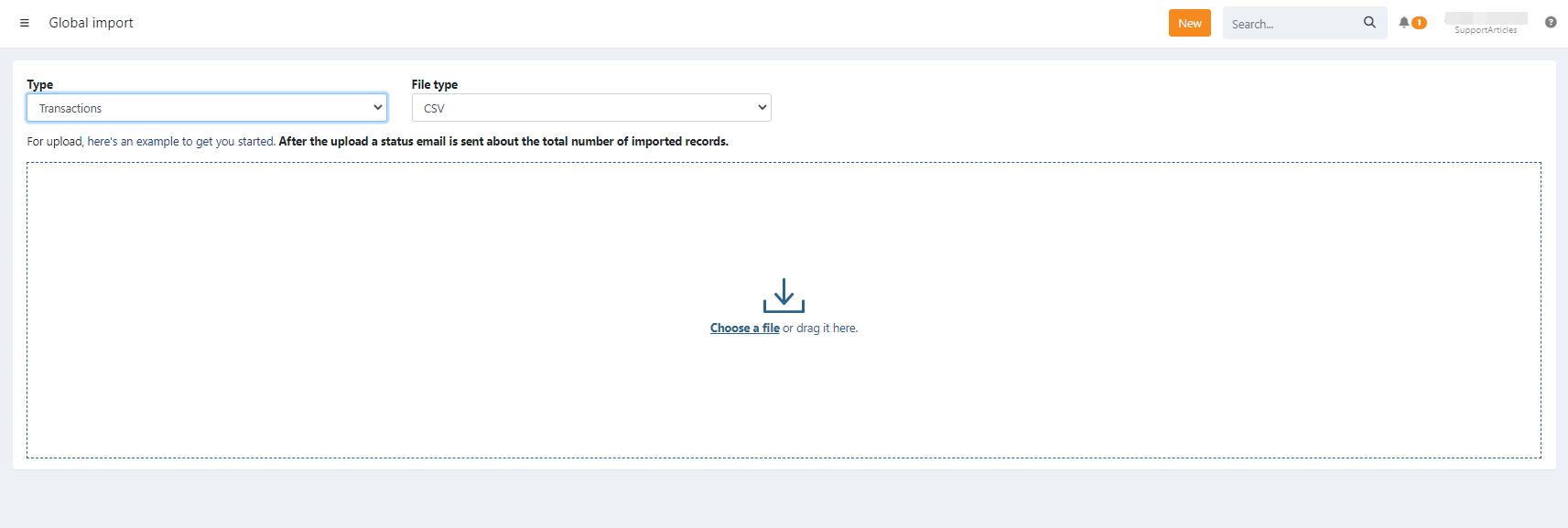
- Transactions Menu:
- Go to the "To Be Sent" screen/overview in the transactions menu.
- Click the button
and upload your file.
Import CSV file with transactions
This allows you to upload a set of separate transactions to your environment. After the upload, these transactions can be found in the Transactions tab of the agreement.
Import CSV file with refunds (linked to a mandate)
Negative transactions can be uploaded as well; transactions with a negative amount will be processed as a refund and linked to the given mandate. After the upload, these refunds can be found in the Refunds section.
Refunds can also be imported only linked to a customer, see ()[]
Required Fields
| mandateNumber | The mandate reference |
| value | The amount of the transaction, e.g. 12.36 or 12,36 |
| msg | The communication to the debtor |
Optional Fields
| ref | Your reference |
| place | Place of the transaction |
| reqcolldt | Requested collection date. When this is not passed, we collect the transaction as soon as possible (YYYY-MM-DD). |
Updates
Importing a file using the same transaction references to update existing ones, is not possible. This will create new transactions.
Import CSV file with refunds (linked to a customer)
Refunds can also be uploaded when a customer has no mandate.
For this set the import type to refunds.
Required Fields
| customerNumber | The customer reference |
| iban | The IBAN account |
| bic | The BIC number of the IBAN |
| value | The amount of the refund, e.g. 12.36 or 12,36 |
| msg | The communication to the debtor |
Optional Fields
| ref | Your reference |
| place | Place of the transaction |
| reqcolldt | Requested collection date. When this is not passed, we collect the transaction as soon as possible (YYYY-MM-DD). |
Template file
Verify the file's content, or use another editor before uploading it in Twikey.
Unable to import transactions
Here you can find some common errors and causes when you are unable to import transactions:
- Invalid SEPA character: The file includes characters that are not accepted.
- Invalid amount: Ensure the amounts are formatted as a number