
Viewing the state of an individual transaction
1. General information
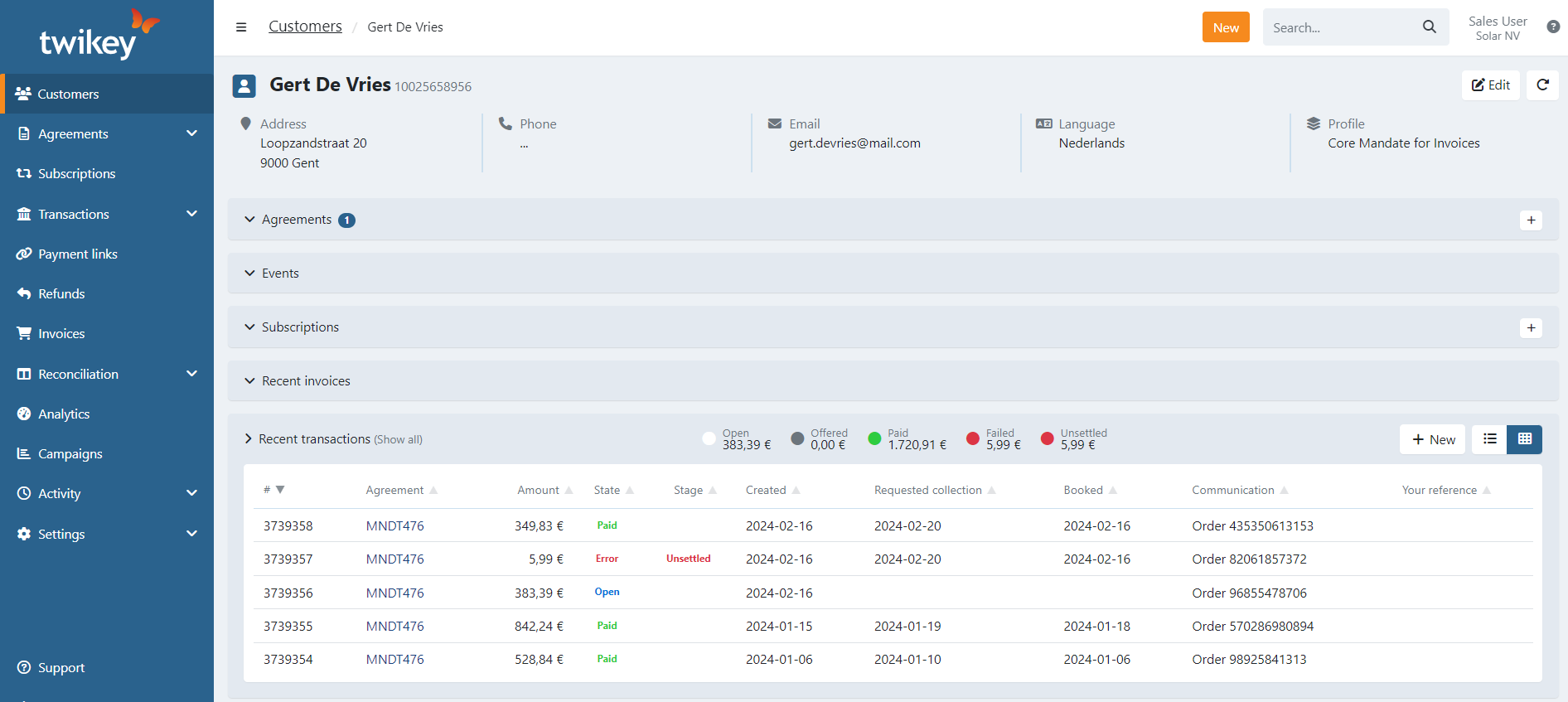
After sending a transaction to the bank, the Transactions > Sent tab will show you the offered, paid or failed state. To get more detailed information about a specific transaction, go to the Transactions tab of the mandate or customer to which this transaction is added. This tab gives you an overview of all transactions generated for this mandate or customer:
2. Overview
The following information can be found in the transactions tab:
- Recent transactions for this mandate or customer include:
- The ID
- The agreement on which the transaction is registered
- The amount
- The state and stage
- Creation, requested collection and booked date
- Communication to debtor
- Your reference
- A summary with the total amounts of recent transactions for the separate states.
To view all the transactions click on 'show all' next to 'Recent Transactions'.
When you click on a specific transaction, you are able to see more information:
Events
The first tab contains the events and general information.
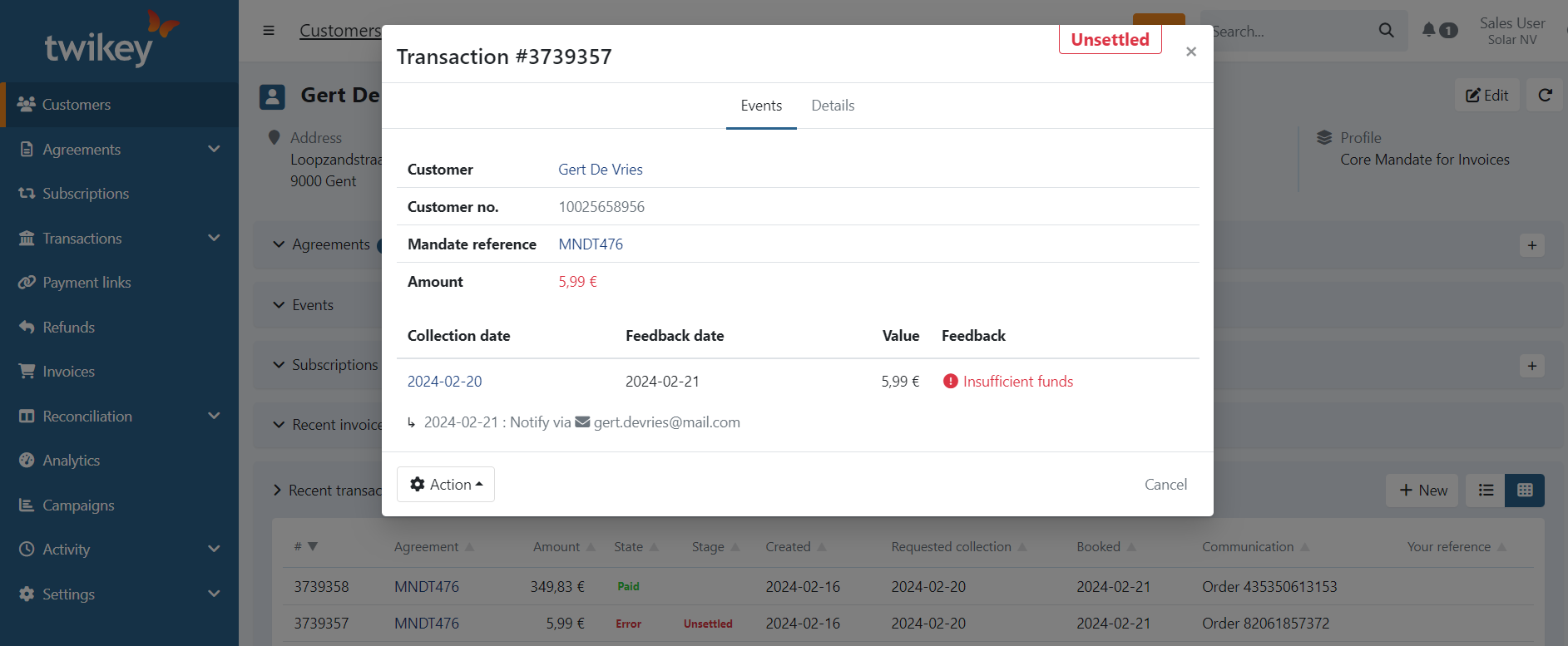
The dunning actions that will be or have been taken for this document are displayed at the bottom. This way, you know what is happening or about to happen.
For failed transactions you can take manual dunning actions using the button.
Details
On the second tab, the details provide more information about the transaction itself, such as the E2E references from the bank.
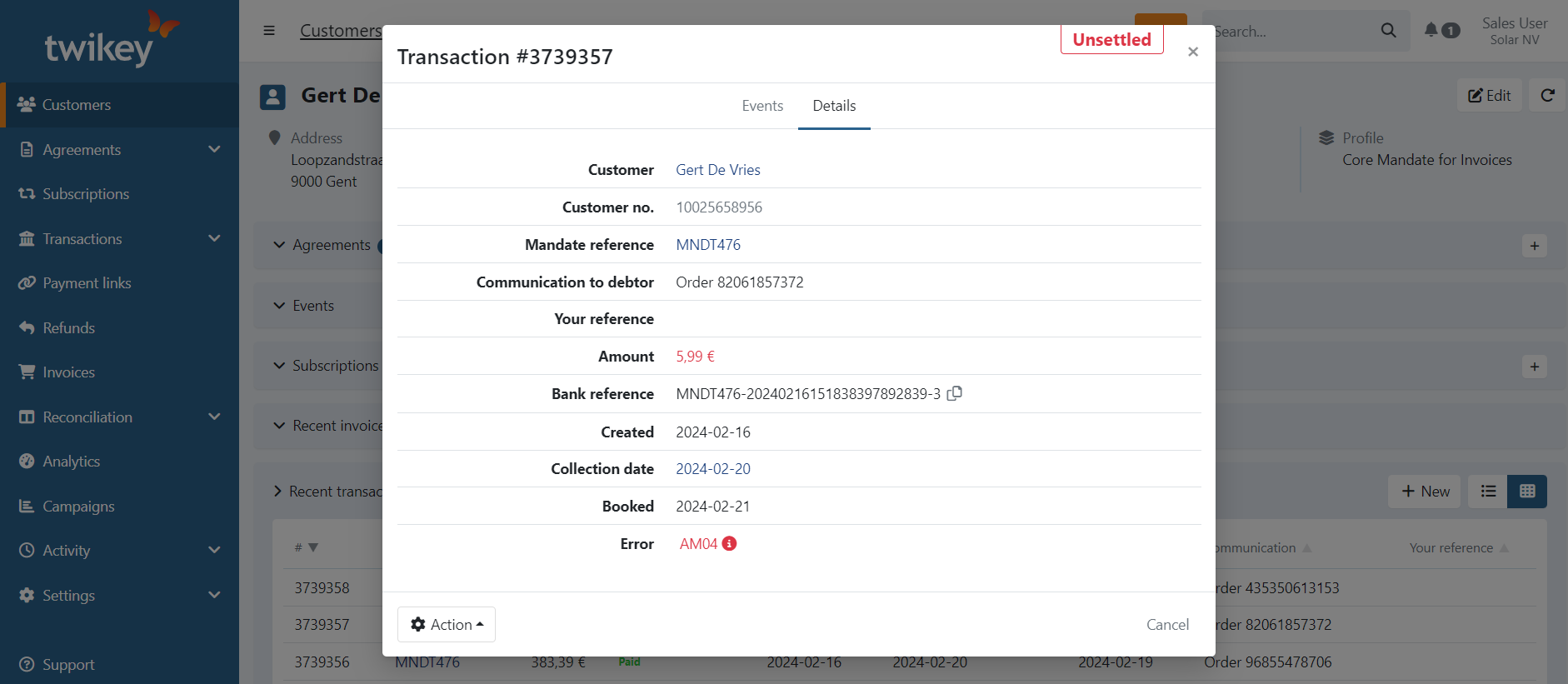
Depending on the state of the transaction, the error code will be displayed. You can use the info icon for more information about the issue and possible solutions to resolve this.
Refunds
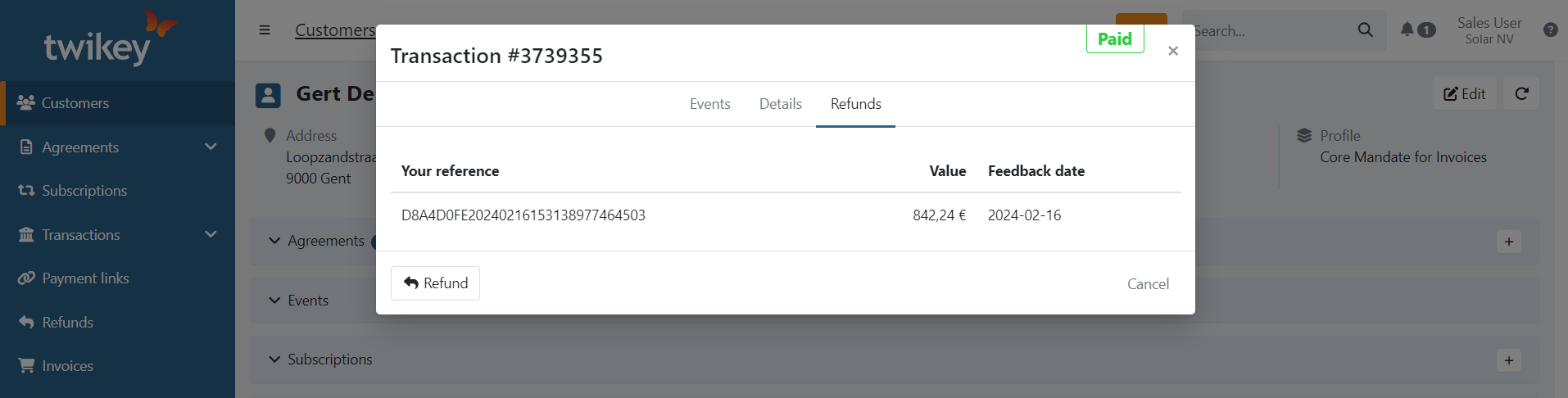
When a transaction is paid, you have the option to refund the full or partial amount or perform multiple refunds using the button.
Once a refund is done, an additional 'Refunds' tab is displayed:
3. States
The possible states of a transaction are:
- Open: a transaction that has been created but which has not been sent to the bank yet, or a transaction that has been prepared for recollection automatically because of your dunning workflow.
- Offered: a transaction that has been (re)sent to the bank but for which no feedback has been received yet.
- Paid: a transaction that has been paid.
- Failed: a transaction that cannot be collected, but for which alternative (dunning) steps will be taken.
- Archived: a transaction that has been archived.
- Unsettled: a transaction that could not be collected. This can have three possible reasons:
- No dunning workflow is set
- All of the dunning steps have been completed and the transaction still could not be collected
- Collections are not possible for this account, for example because the account number is incorrect or the account has been closed. You can find a list of the possible error codes here.
4. Actions
Depending on its state, you can perform different actions on a transaction by clicking on the button on the details of a transaction.
You can find all the related dunning actions on our Actions on unsettled transactions documentation.
Open transactions: When the transaction is not yet sent to the bank, you have the option on the details to:
: Remove the transaction.
: Update your transaction, change the amount or references.