
To be sent overview
The 'to be sent overview' shows all transactions that are eligible to be sent to the bank or PSP, grouped per profile. From this screen, you can review upcoming collections and manage batches before they are processed.
You can:
- Import transactions
- Export transaction lists
- Delete entire batches
- Send batches to the bank
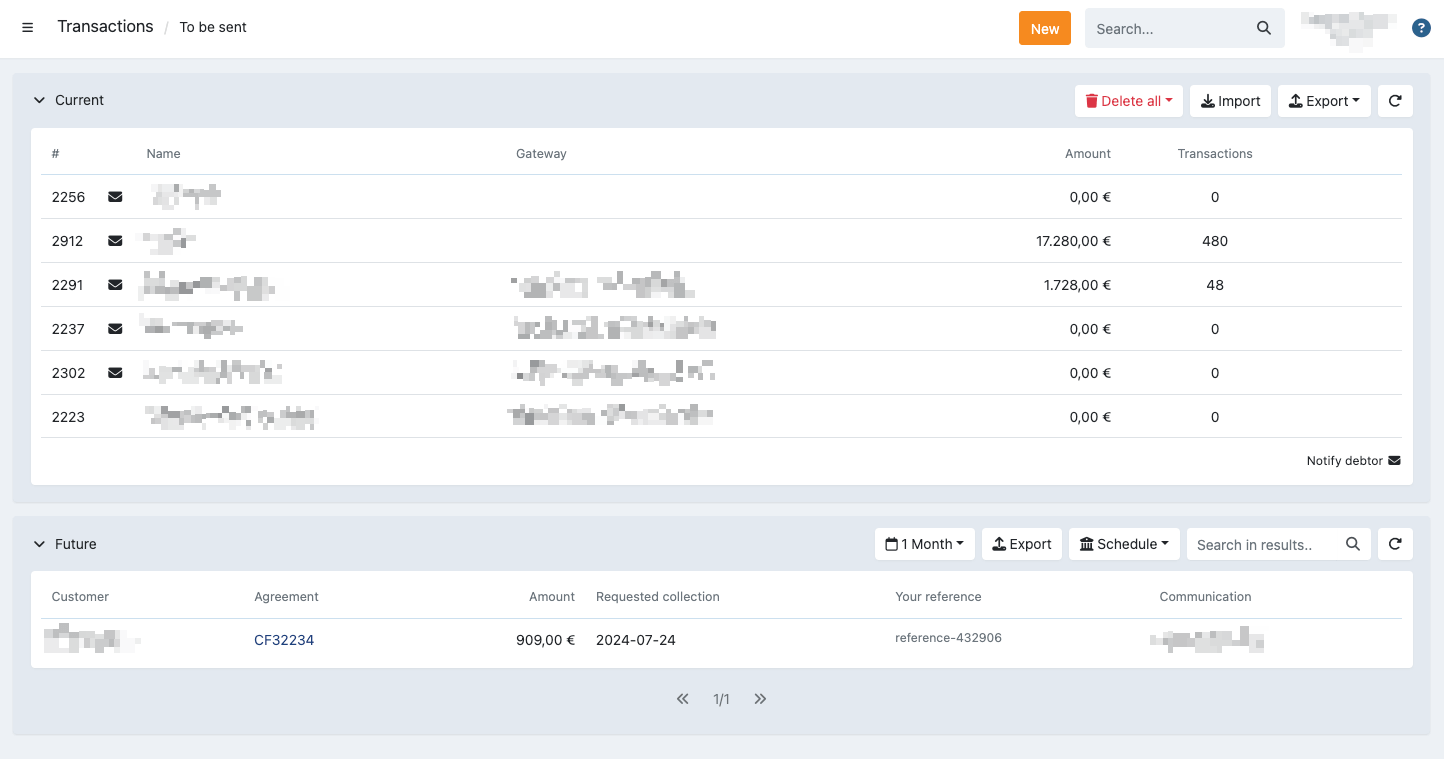
Batch overview
For each batch, the following information is displayed:
- Profile ID and profile name
- The gateway used for collection
- Total amount to be collected
- Number of transactions in the batch
By clicking on a batch, you can open the batch details, where you can:
- View and manage individual transactions
- Identify and resolve uncollectable transactions
- Send the batch to the bank
For more information, see the related article on batch details.
Available actions
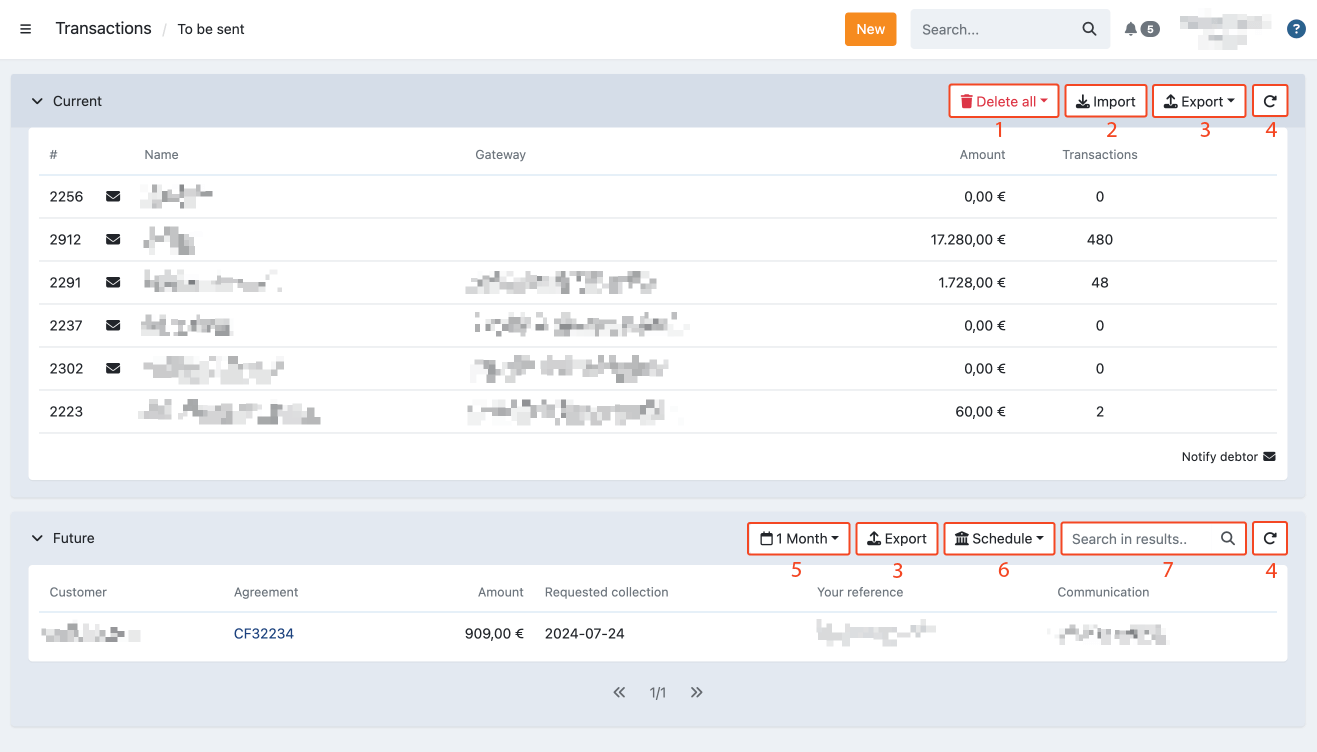
From this screen, you can perform the following actions:
- Delete a batch of transactions for a specific profile
- Import a batch of transactions using a specific direct debit file or CSV file or another type of file.
- Export a batch of transactions that are still pending of a specific profile
- Refresh the transaction overview
- Filter on future transactions
- Schedule a profile of future batches
- Search within future transactions
Clicking on a specific batch opens the detailed view of that batch.
Next to each batch, the 'Notify debtor' icon may appear which indicates that a collection notification email will be sent to all customers when the batch is sent to the bank.
Mismatch between transactions on screen and actual number of transactions
When a merchant manually approves a batch, the number of approved transactions may differ from the number that would actually be included at send time. This mismatch can occur because:
- The API is still receiving new transactions that qualify for inclusion in that batch.
- Bank feedback has caused some transactions to be excluded (e.g. mandate issues) or re-offered (e.g. retry after a technical failure).
This is not an issue for API-triggered or automatic sending.
When a mismatch is detected, the interface blocks the send and the merchant receives an error notification by email (because this typically involves large amounts). The email contains a link to the relevant support article. Twikey Support can force-send the batch even when a count mismatch exists — this is an exceptional, manual action reserved for support staff.