
Interaction settings
- Default domain
- Global thank-you page
- Thank-you page
- Invoice thank-you page
- Contract reference URL
- From Email
- Support email
In this tab, you can define the interaction with your customer. The following options are displayed for each language that is active on the current profile.
Default domain
Here you can specify which domain that is used by the profile. With this you can configure which domain is used for communication to the debtor. These domains can be configured in the branding tab.
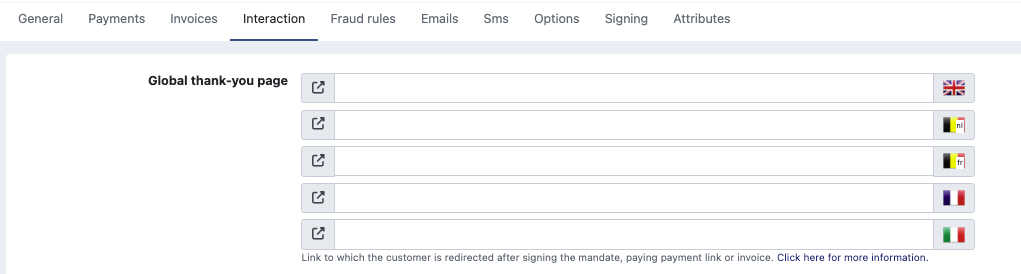
Global thank-you page
If you want your customer to be redirected to a specific web page after signing your document, paying a payment link, invoice,... you can enter the URL here. Always use http(s):// or, for mobile applications, the mobile prefix.
It is possible to define a different URL for each language. If the global thank-you page is activated, you cannot use the 'general' thank you page (because the global also has other url parameters)
See our related article How to define a Global Thank-you page for more information on this subject.
By default, the thank-you page will be https://{yourdomainname}.twikey.com/postSign.html
Thank-you page
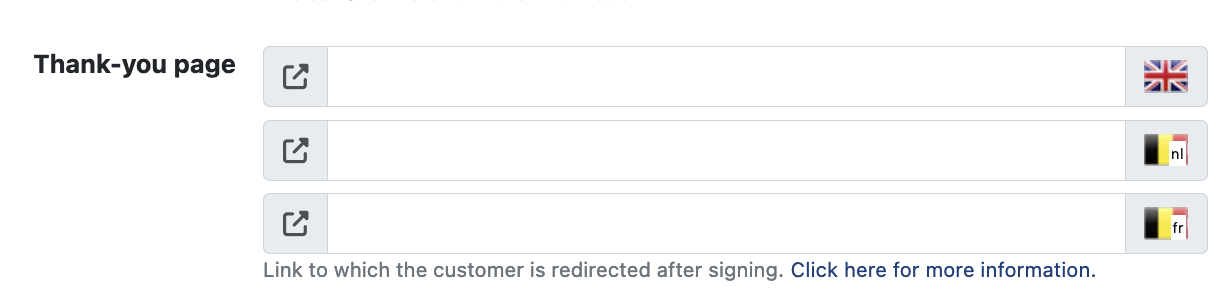
The Thank-you page is only applicable for agreements.
With a Thank-you page you define the page to which the end user is redirected after signing (or trying to sign) your document.
This can be a Thank-you page, a page on your own website or any other page of your choice. Always use http(s):// or, for mobile applications, the mobile prefix.
Find more information about a Thank-you page on our related article How to define a Thank-you page.
Invoice thank-you page
Only applicable for invoices.
The invoice Thank-you page allows you to define a page shown when the customer paid the invoice.
The type determines whether the url will be shown inside the page, as a popup or as a new page.
For Modal or Popup please contact support, as these only support relative links for security.
Find more information about a Thank-you page on our related article How to define a Global Thank-you page.

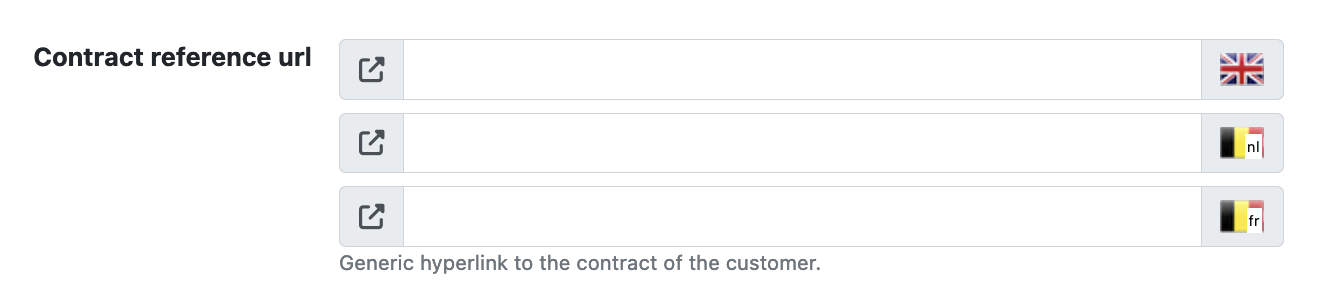
Contract reference URL
If you want your customer to be able to view the contents of the contract for which he signed a document, enter its URL here. The customer can see this contract when he clicks on the button next to the profile name in the signing flow.
From Email
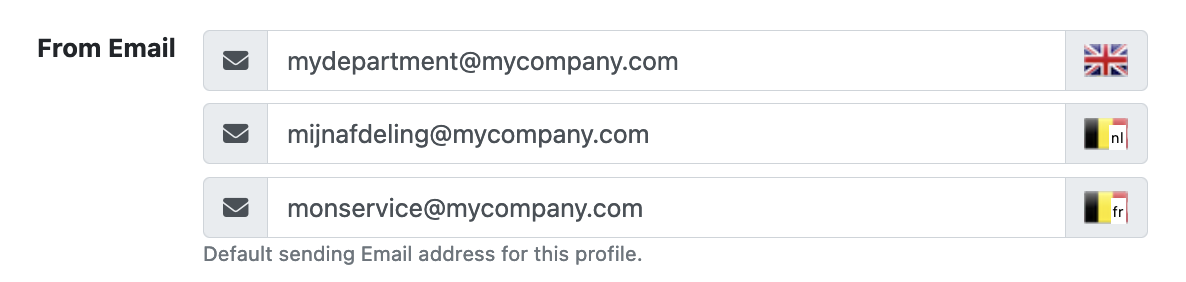
Set a specific email address as sender for this profile.
- The sender address can be different for each language enabled on the profile.
- Languages left blank use the default email address defined in your Email Integration.
Support email
If you want your customers to be able to transmit their questions/issues to a specific email address, enter it here.
