
Emails settings and variables
- Emails overview
- Updating the content of an email
- Disable customer emails
- Enable customer emails
- Disable merchant in CC emails
- Reset emails
- Email variables
Show me
Emails overview
Only users with the Administrator role can update the content of an email.
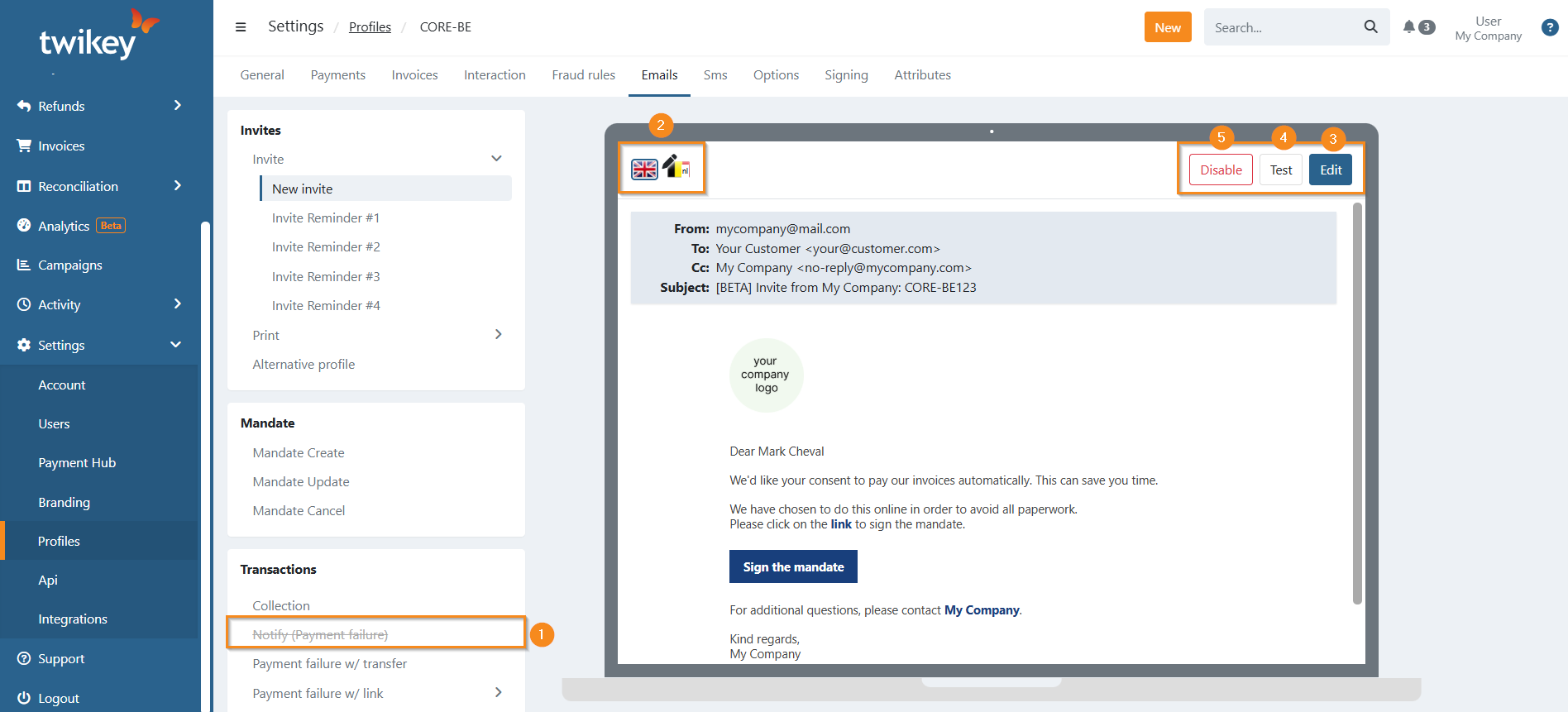
The emails overview can be found in Settings > Profile > Emails. You can find the following information here:
- A list of all of the emails templates that can be sent to customers (left side of the screen)
- Emails that are disabled (1)
- The content of the email (right side of the screen)
- The languages in which the email is available (2)
- When the content of the email was edited a pencil icon is displayed on the language
- To edit the content of an email, select the email you want to adapt and click on Edit(3).
- Each language can be personalised individually
- To test your email, click Test (4). This will send a test email to the email address associated with the user account you are currently logged in with.
- To disabled a specific email, click on Disable (5)
Updating the content of an email
After you've clicked Edit, the Modify email screen is opened. By default, the mail content will be displayed in the language you are currently working in. To view the mail content in another language, click on the corresponding flag. The content for each language can be personalised.
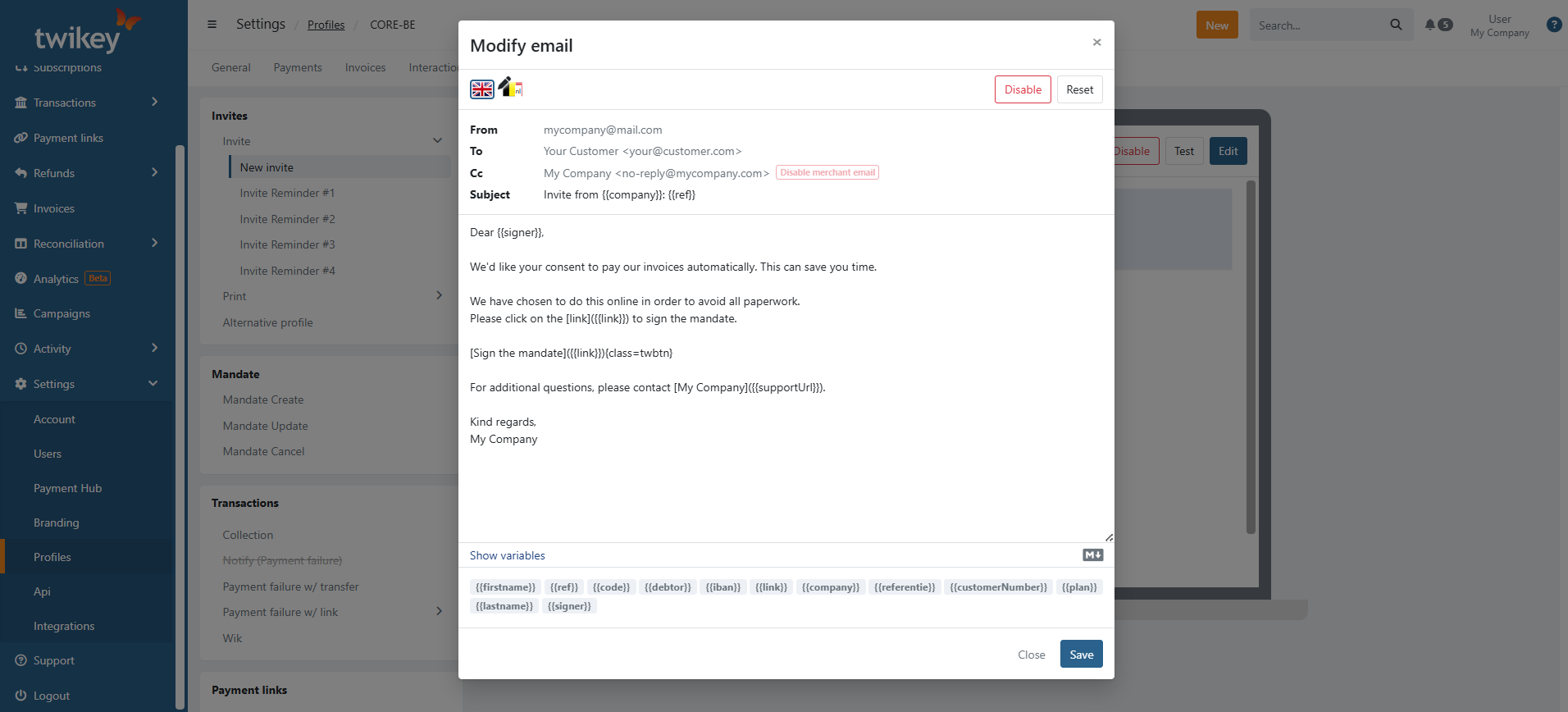
The Subject field is empty by default. This means that the standard subject title will be used. If you want to use your own subject, simply enter it here. In your invite and mandate create emails, you can also use an already defined attribute as a variable in the subject. To do so, look up the attribute in the Attributes tab of your profile and use the attribute name. For example, if you attribute is called 'clientnumber', it should be entered as {{clientnumber}} in the subject of your mail.
The Body can be adapted to your liking. By default it is in markdown format. The variables that you can use in the email are displayed when you click Show variables below the email body. For more explanation about the use of variables, see article: 'Use of variables in emails'
There are a few special options for emails:
- To use the "€" sign, please encode the following:
€. - To use an email link, please encode the following:
[yourtext](mailto:test@test.com). - To use a hyperlink, please encode the following:
[yourtext](http://www.test.com). - To use read confirmation by the customer add the tag
<img src="{{statuslink}}?pixel">in the body.
After editing, don't forget to click Save.
Mails of which the content has been updated can quickly be identified by the pencil icon on the corresponding language flag.
Disable customer emails
All e-mails can be disabled except those from the collection of a transaction which is required by law to be sent to the debtor unless the merchant has included this in its terms and conditions.
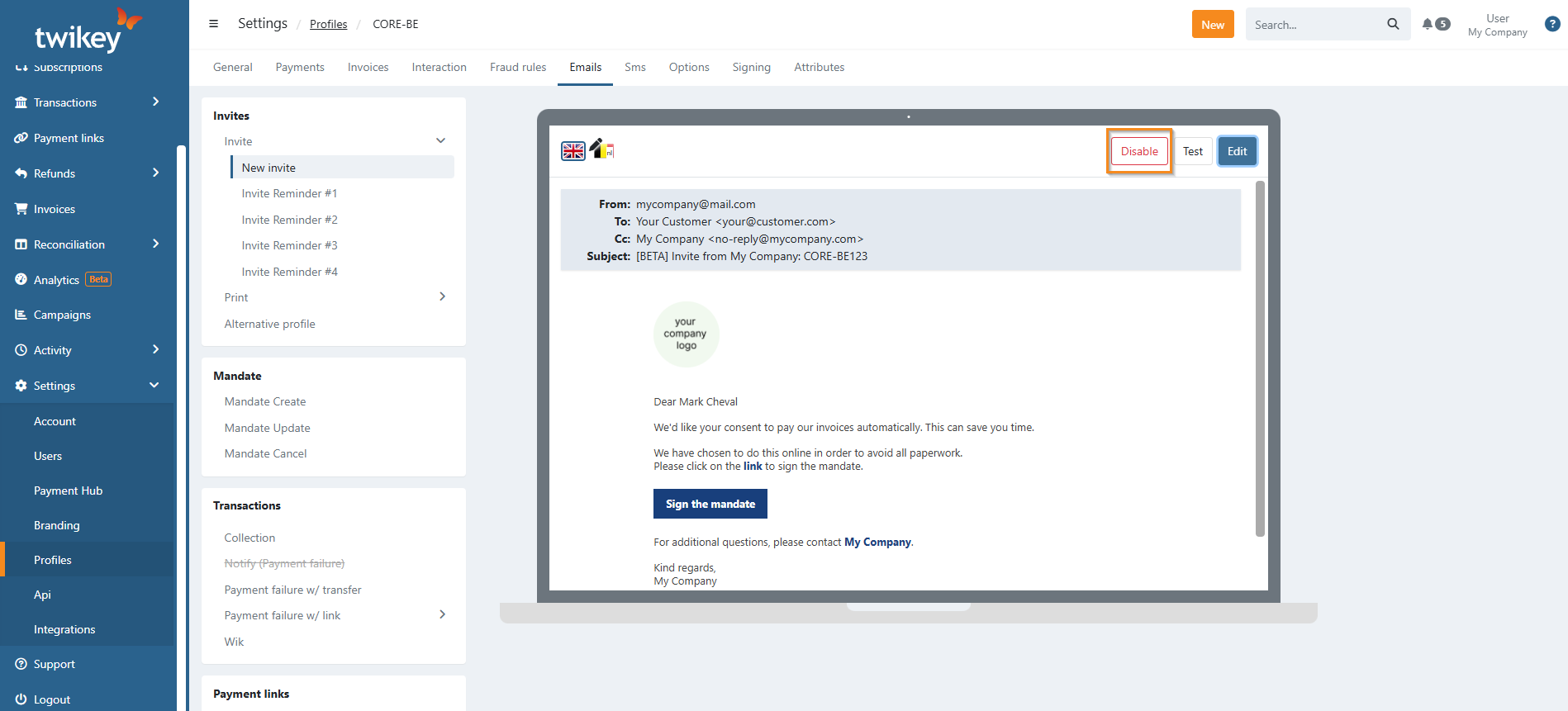
To disable a specific customer email:
- Select the email you want to disable
- Click on Disable
The email is now disabled for both the customer and the recipient in CC (your company email).
Enable customer emails
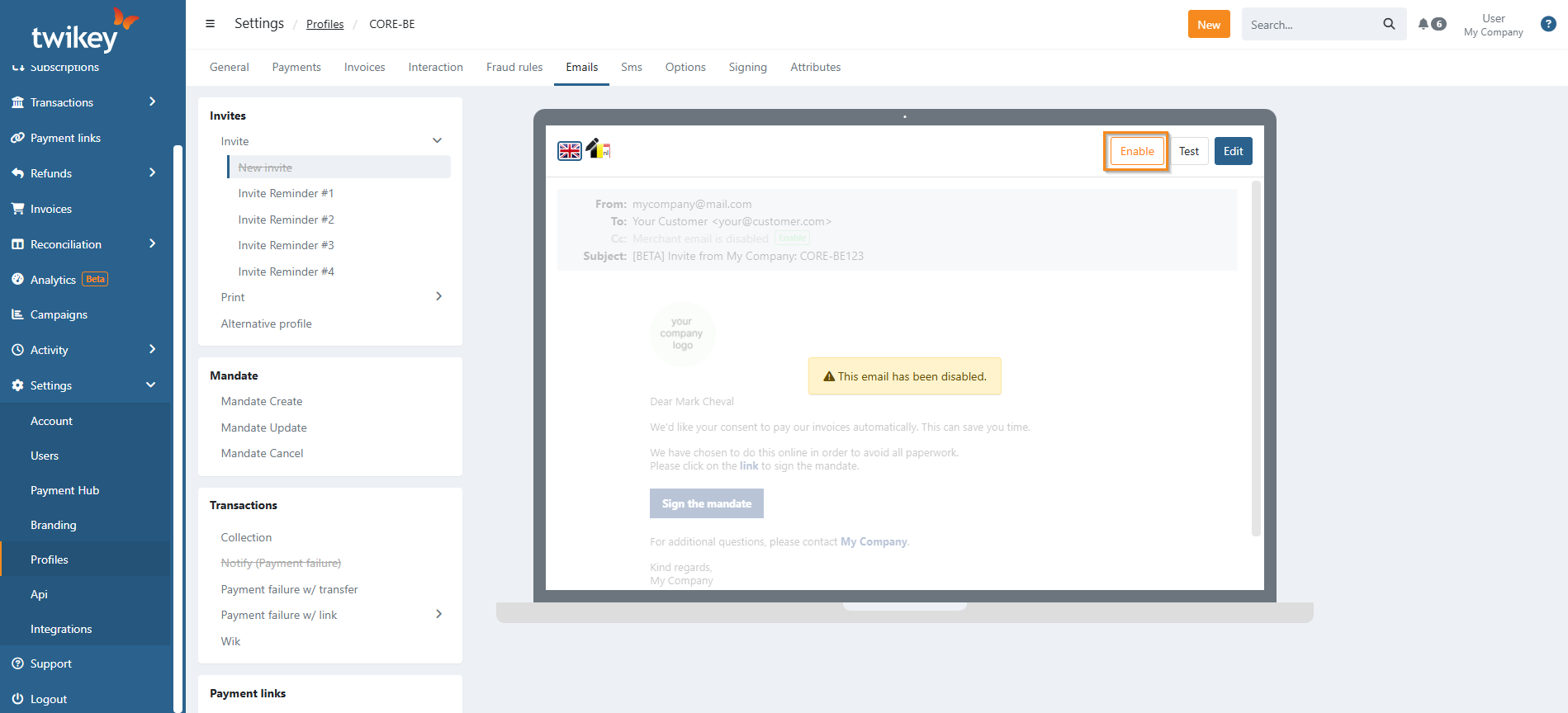
To enable a specific customer email:
- Select the disbaled email you want to enable
- Click on Enable
Disable merchant in CC emails
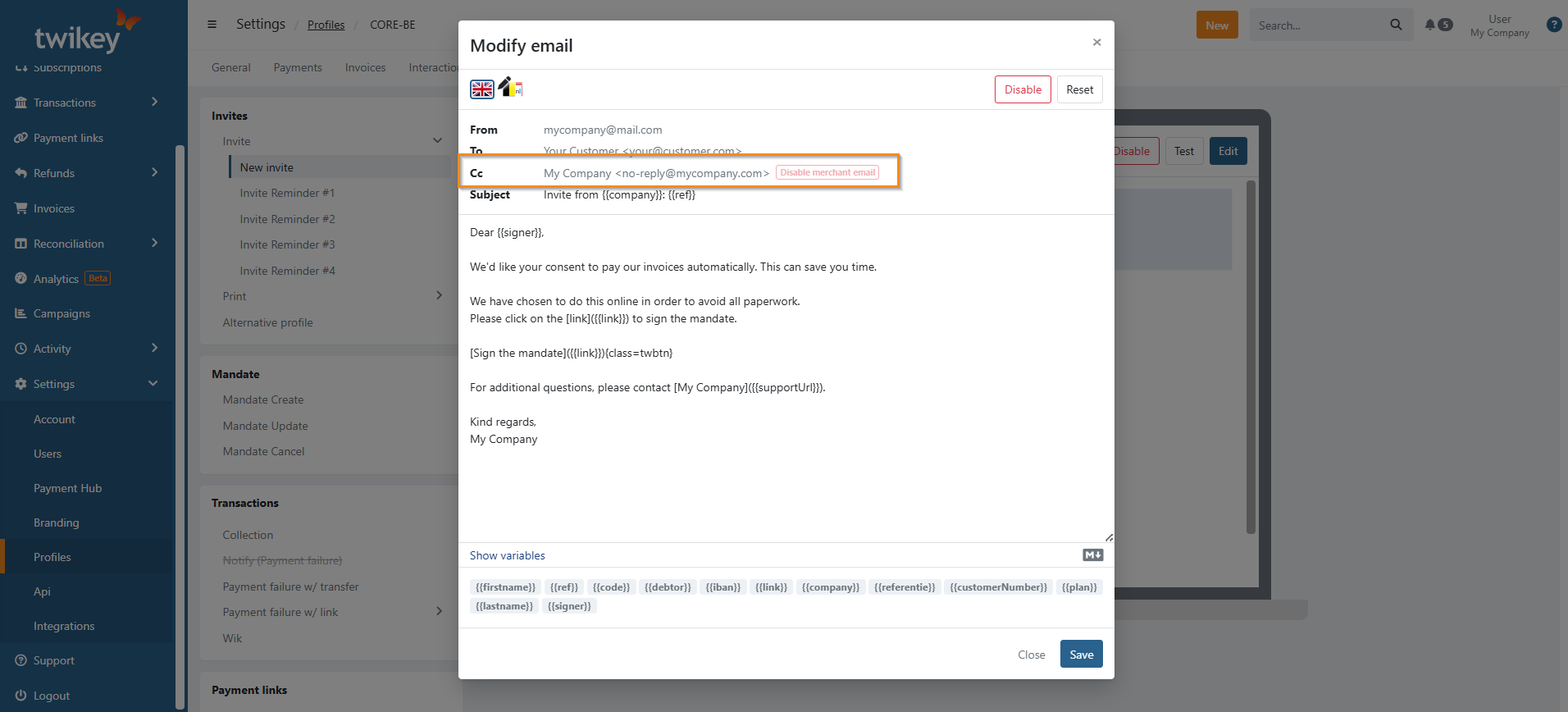
To stop receiving copies of customer emails in your mailbox, disable merchant emails for the specific email notifications you wish to exclude.
- Click on the email you want to exclude
- Click on Edit
- Click on the red banner Disable merchant email next to your email address.
Reset emails
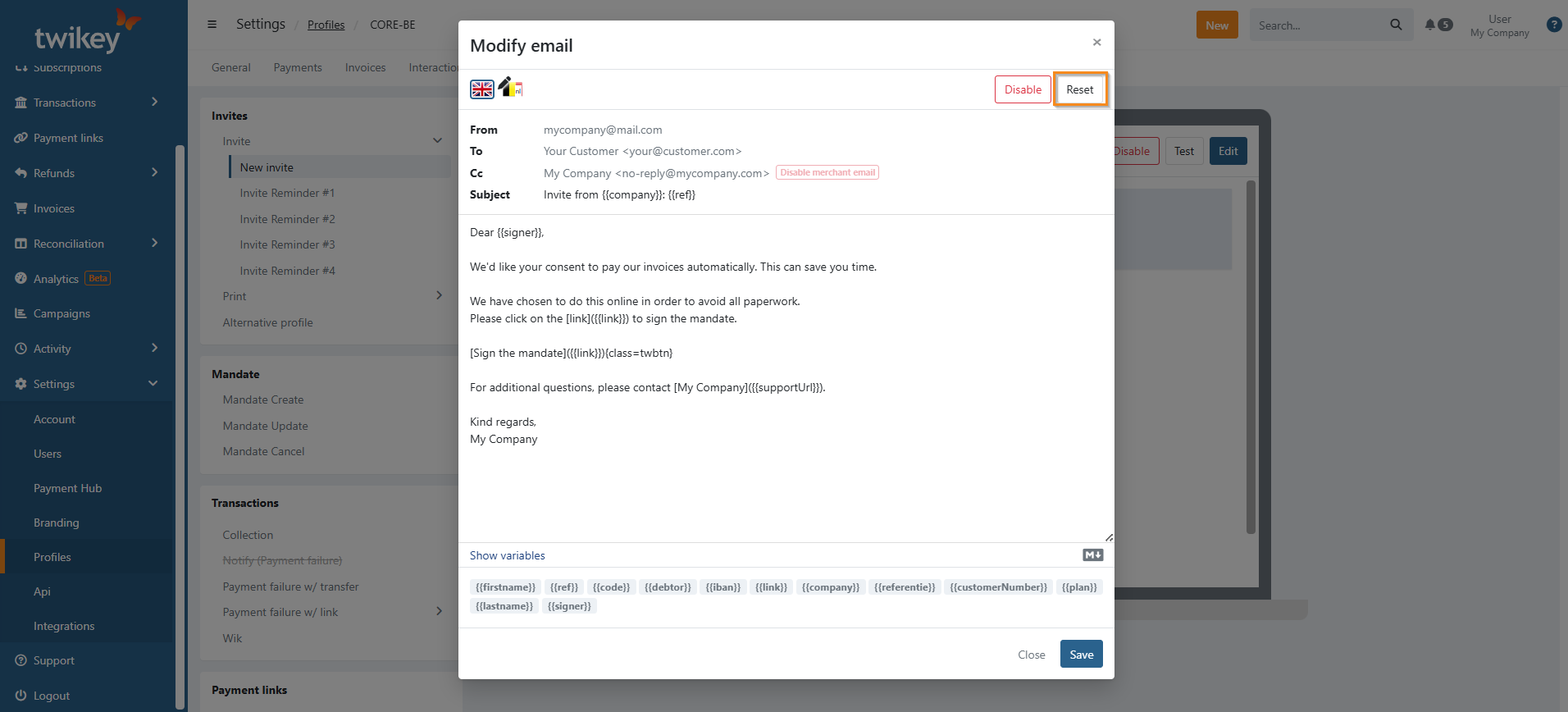
Emails can be reset to their default content, when you reset an email the content for all the languages is reset for that email.
To reset emails:
- CLick on the email you want to reset
- Click on Edit
- Click on Reset
Email variables
Use variables in email templates to automatically insert dynamic data (names, links, references).
Only use variables supported for the specific email type. Unsupported variables appear blank.
Invite emails
| Variable | Description |
|---|---|
{{signer}} | Debtor’s first + last name |
{{debtor}} | Company name (or fallback to signer) |
{{customerNumber}} | Customer ID if there is one |
{{ref}} | Agreemeent reference |
{{code}} | Short link code of the agreement |
{{link}} | Signing link |
{{company}} | Your company name |
{{supportUrl}} | Support link for your customers (f.ex. : yourcompany.twikey.com/support) |
Print / Paper emails
| Variable | Description |
|---|---|
{{customerNumber}} | Customer ID if there is one |
{{b2bEmail}} | Your company email - email address shown in Settings > Account > Company Information |
{{uploadUrl}} | Upload link for for your customer to upload their signed sagreements |
{{ref}} | Agreemeent reference |
{{name}} | Company name if there is one (or fallback to signer) |
Reminder emails
| Variable | Description |
|---|---|
{{firstname}} | Debtor’s first name |
{{lastname}} | Debtor’s last name |
{{creditor}} | Creditor (company) name |
{{customerNumber}} | Customer ID if there is one |
{{mandate reference}} | Mandate reference |
{{contract}} | Contract number |
{{uploadUrl}} | Upload link for for your customer to upload their signed sagreements |
{{returnEmail}} | Your company email - email address shown in Settings > Account > Company Information. Can be used by customers to return signed documents by email. |
Mandate emails
| Variable | Description |
|---|---|
{{firstname}}, {{lastname}} | Debtor name |
{{creditor}} | Your company |
{{link user}} | Access link to signed document |
{{ref}} | Agreemeent reference |
{{email}} | Email address of your customer |
{{customerNumber}} | Customer ID if there is one |
Invoice & Transaction emails
| Variable | Description |
|---|---|
{{invoice_date}}, {{invoice_due}} | Invoice dates |
{{link}} | Payment link |
{{invoice_total}} | Amount |
{{name}}, {{customerNumber}} | Customer info |
{{amount}}, {{date}} | Transaction details |
{{support_mail}} | Support email |
Notes
- Variables differ per email type; always verify support.
- Custom attributes must be updated if renamed.
- The standard invoice emails (with/without direct debit) contain the PDF of the invoice in attachment of the mail.
- The Peppol invoice email does not contain the PDF of the invoice in attachment of the mail to avoid possible double bookings in your systems.
- A dedicated Peppol credit note email template is available to notify customers that their credit note was delivered via Peppol. This is separate from the standard credit note email.