How to prepare a refund batch for execution
When you create refunds, we group them into a batch that needs to be submitted to your bank so they can executed. You can either download the batch file and upload it manually in your bank environment, or — if you have refund-supported bank gateway enabled — send it directly to the bank itself.
How to prepare a refund batch for execution
- Navigate to Refunds in the left-hand navigation menu.
- Click the batch you want to send.
- Click Prepare
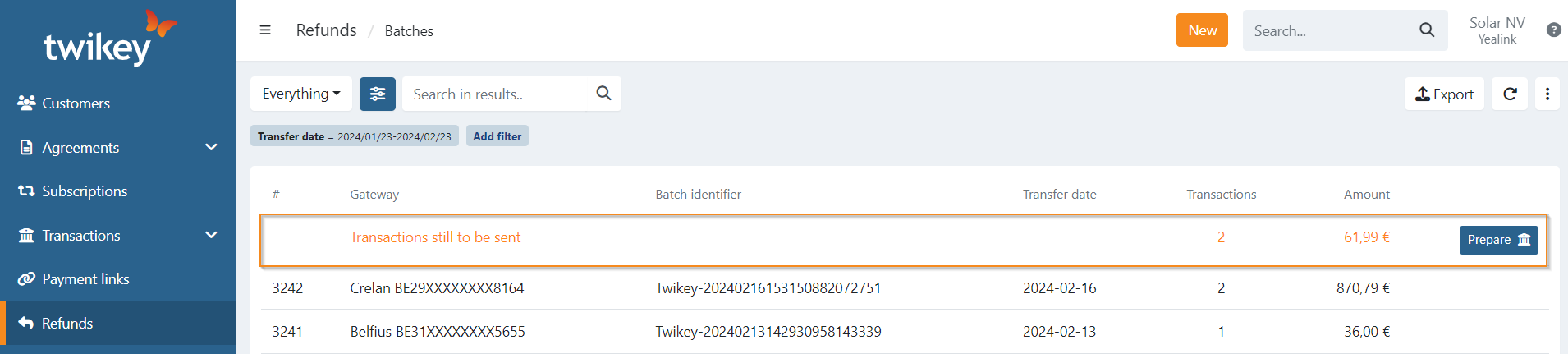
- Click Send to bank
- Verify the number of transactions and the total amount.
- In the popup, select the gateway account from which the refunds will be debited.
- Click Prepare to download the refund batch
or
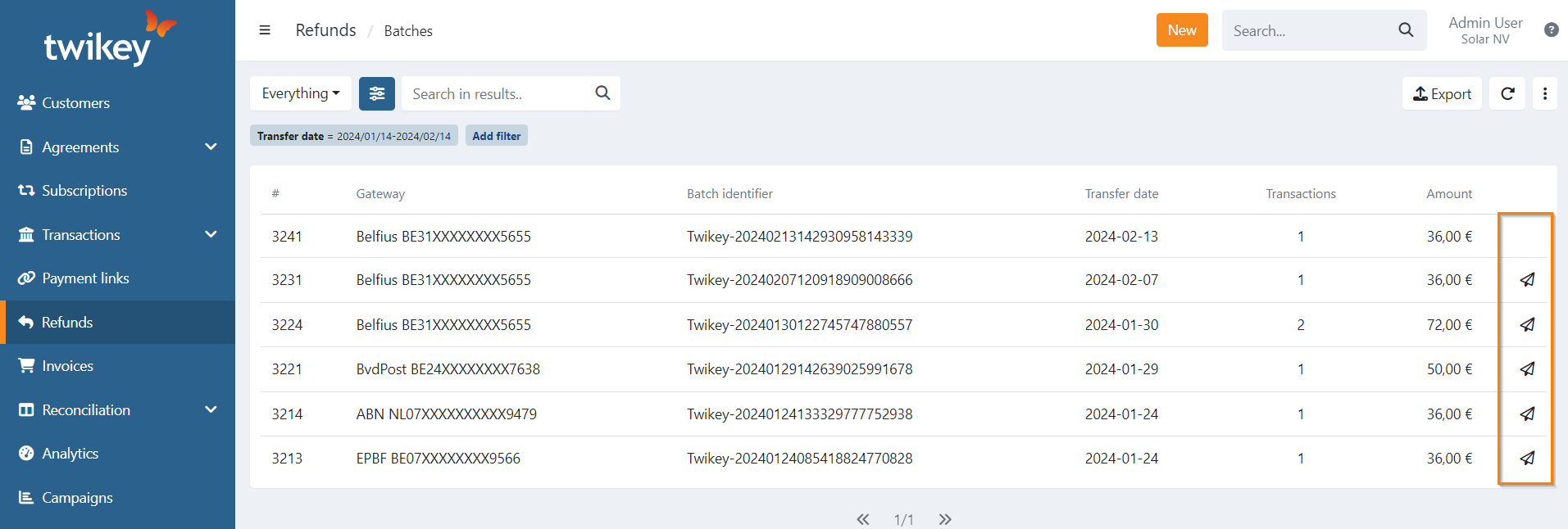
click Send to bank if a refund supported bank gateway is enabled) to send the batch. - Batches sent directly to the bank are marked with a send icon in the refund overview.
What are blocked items
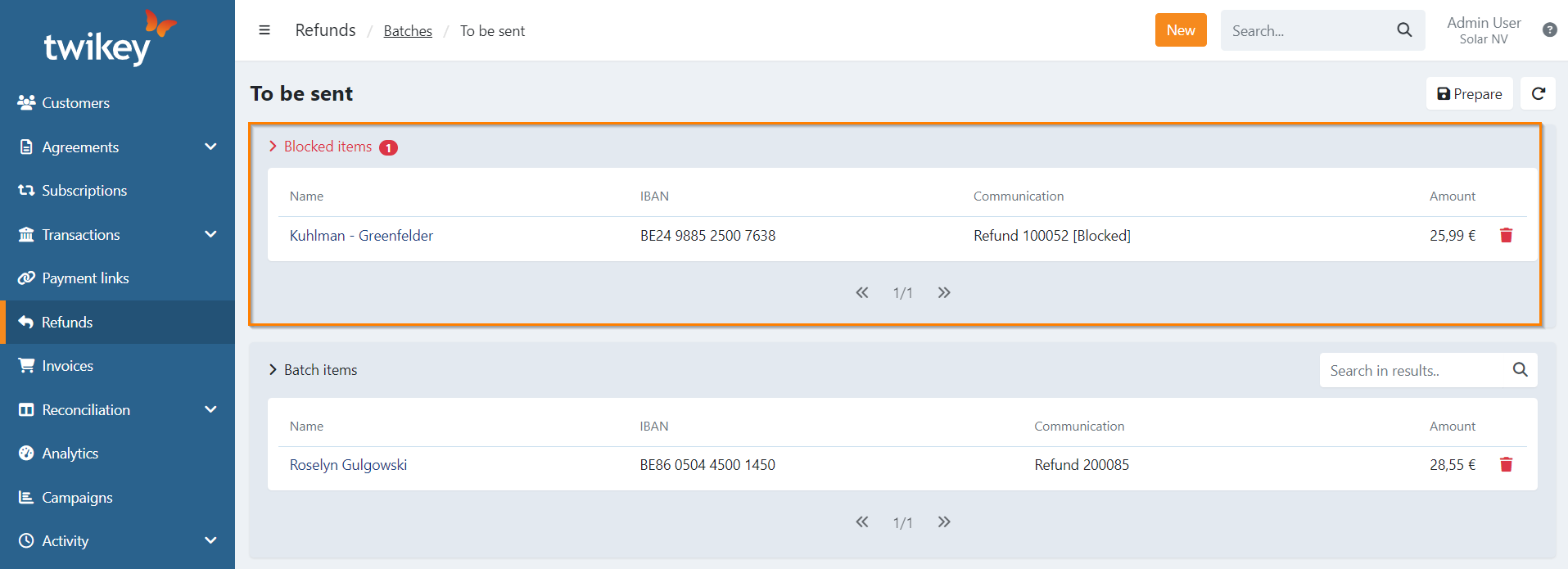
Blocked items are refund transactions that are not included in the refund batch upon the creation. The refund batch itself can still be created and processed normally, but the refund transadctions linked to blocked accounts will automatically be excluded. This prevents refunds from being sent to accounts that should no longer receive payments.
How can a refund transaction be blocked?
A beneficiary account needed to pay a refund to your customer. In some situations, this account may be suspended or temporarily blocked. This can happen for example when:
- The IBAN is marked as invalid or outdated
- The customer requested the account to be disabled
- The account was manually suspended to prevent payments
When you prepare a refund batch and one or more refunds are linked to such a suspended account, these refunds will appear as blocked items on the batch detail page.
You can reactivate the account via the customer detail page.
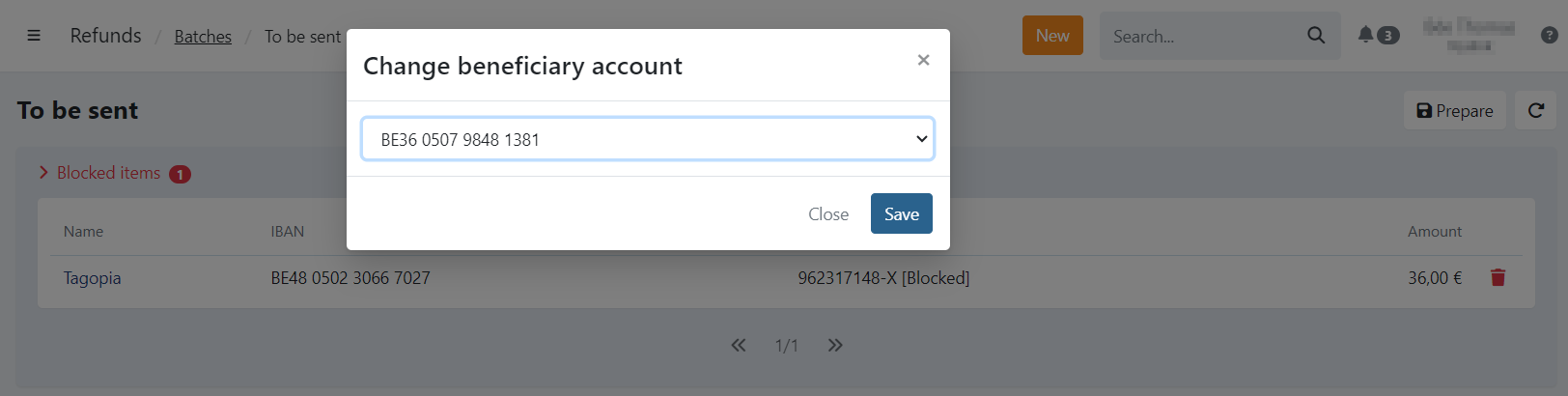
Use a different beneficiary account for blocked items
If you want to redirect a blocked refund to a different account:
- On the batch detail page, click the edit icon next to the blocked IBAN.
- Select a different beneficiary account.
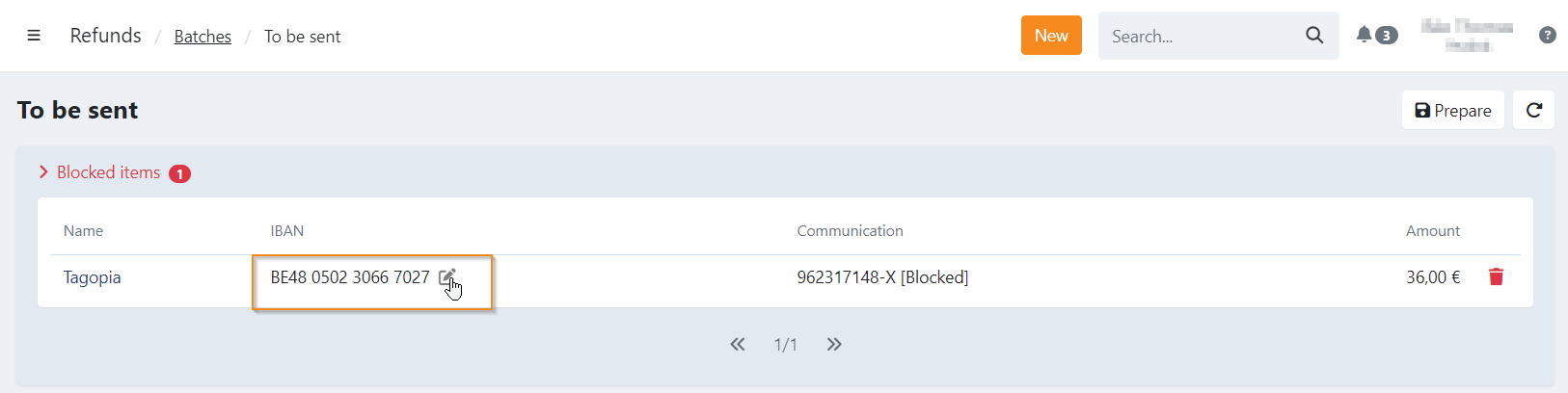
- Click Save.