How to reconcile payment links
When a customer pays a payment link, the funds are collected by your Payment Service Provider (PSP). The PSP periodically transfers the collected amounts to your bank account as a lump sum — making it difficult to match individual payments back to invoices in your accounting package.
Twikey solves this by generating a reconciliation file for your paid payment links. By importing this file into your accounting package using a temporary suspense account, the collected amounts are automatically matched to your individual invoices — no manual reconciliation needed.
Generate a reconciliation file
- Navigate to Reconciliation in the left-hand navigation menu.
- Click Generate.
- Select the type Payment links.
- Select your desired file format.
- Click Download.
- Import the file into your accounting package.
Reconciliation accounts
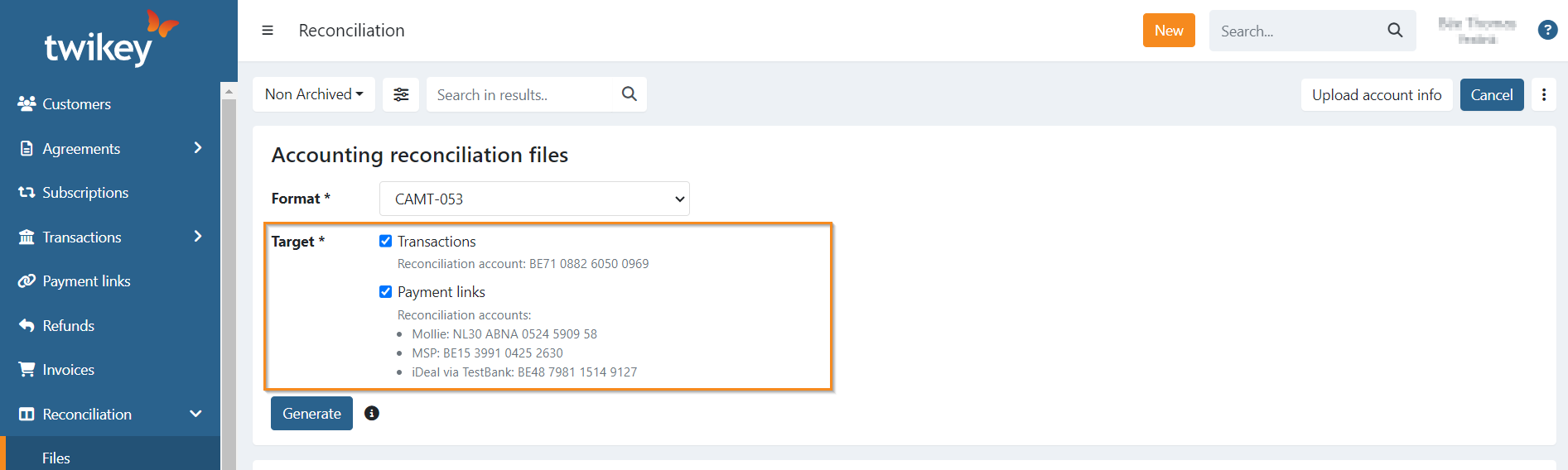
Each reconciliation file contains a designated reconciliation account. This account is used as the suspense account in your accounting package. It can be:
- The default account of your Payment Service Provider (PSP).
- The default Twikey reconciliation account (
BE71088260500969) — used when no PSP account is found. - A custom account you have configured.
In the example below, three PSPs are active. For each PSP, the corresponding reconciliation account is displayed.
Configure a custom reconciliation account
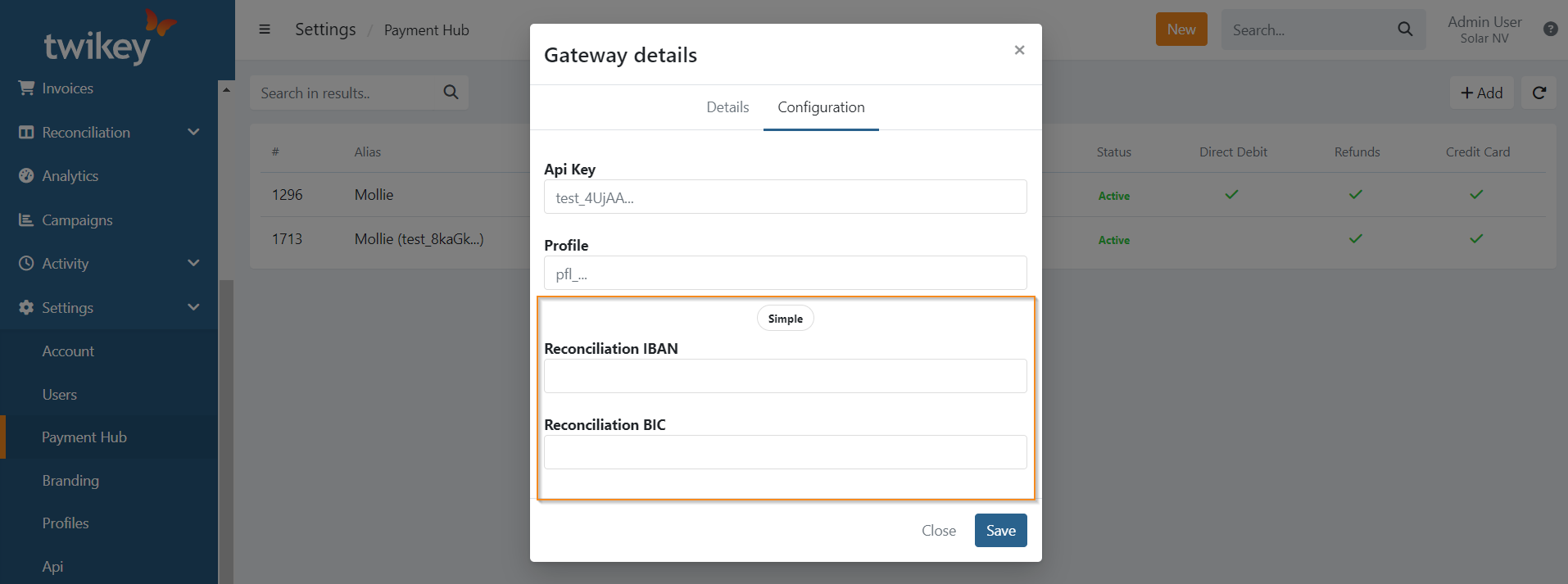
- Navigate to Settings in the left-hand navigation menu.
- Open Payment Hub.
- Click the PSP to open the details.
- Open the Configuration tab.
- Click Advanced.
- Enter the IBAN to use for reconciliation.
- Click Save.