
How to send invoices via email
- Send individual email invitations from t...
- Send multiple email invitations from the...
- Selecting invoices
Show me
Send individual email invitations from the invoice menu
From the invoice overview, click on an invoice to open the invitation screen.
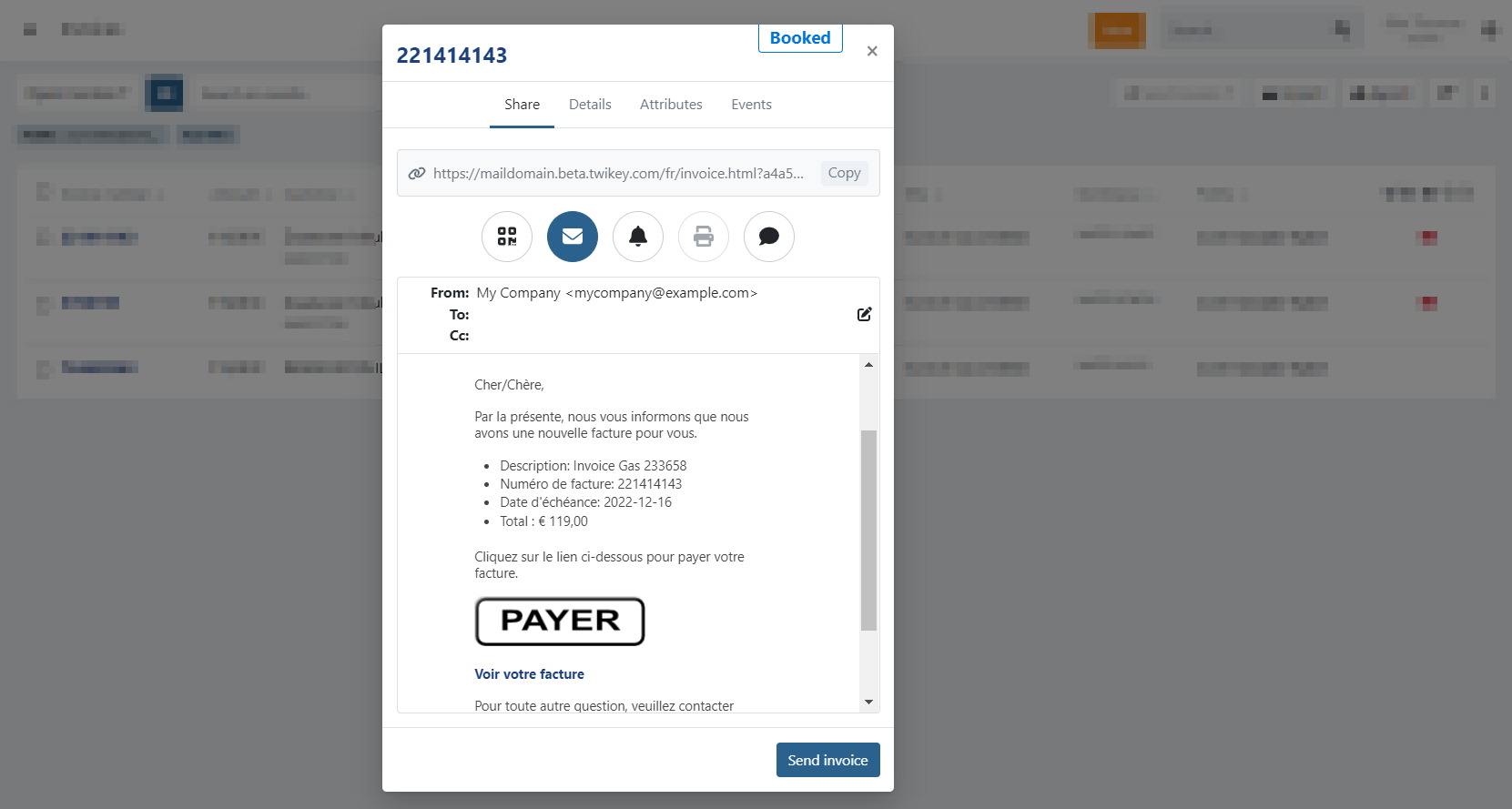
- Select the envelope icon to display a preview of the email message
- Click send invoice
Within the email invitation, you can configure the following fields:
- From: The sender of the email. A different sender address can be configured per invoice profile (optional).
- To: The recipient of the email.
- You can edit the recipient for a specific invoice.
- This change only applies to the selected invoice.
- The customer’s stored email address remains unchanged.
- Cc: An additional recipient. This can only be configured at customer level.
Verify the correct language(s) are enabled in the (invoice) profile. If not, the email is sent in English as this is the default language.
The email content can be customized via **Settings > Profile > Email tab > Invoices**.
Send multiple email invitations from the invoice menu
To send multiple invoice invitations at once:
- Select one or more invoices in the invoice overview.
- Click Share to open the dropdown menu.
- Choose Email
- A confirmation window will appear with the number of invoices to share.
- Click Yes to send the invitation mails.
If the selection includes invoices with the status **Paid** or **Archived**, no invitation will be sent for those invoices. All other eligible invoices in the selection will still receive the mail.
Selecting invoices
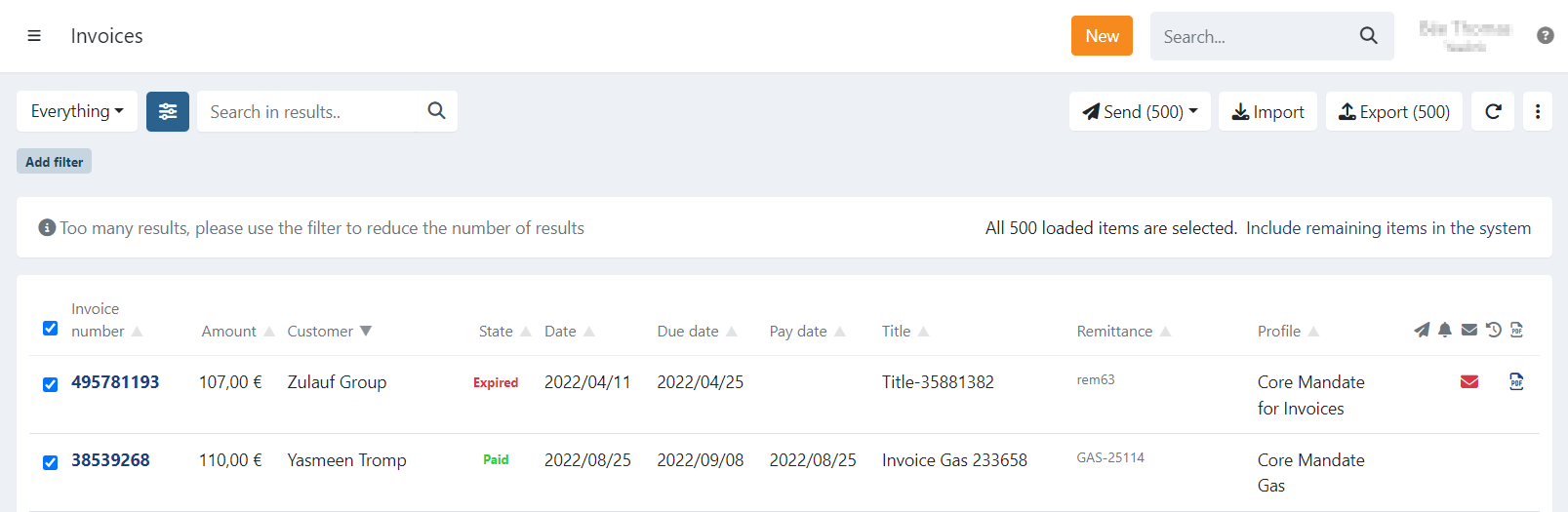
The invoice overview is limited to 500 invoices at a time.
When you select all invoices at once, you can choose to perform an action on:
- Only the 500 displayed invoices, or
- All invoices that match your current filter.
A dialogue will notify you about this option.
To select all remaining invoices that are not displayed, click: "Include remaining items in the system."
Last Update: 2026-02-24