
How to send invoices according to your customers preferences
- Why send by customer preference?
- Configure the default company delivery m...
- Configure an invoice delivery method per...
- How to send invoices based upon the cust...
When sending invoices to multiple customers at once, Twikey automatically applies each customer’s configured delivery method — whether that is email, letter, or Peppol. There is no need to manually filter or split invoices by channel beforehand. This is particularly efficient when working with a mixed customer base that requires different delivery methods.
First, define your company’s default delivery method. This setting determines how invoices are sent when no specific preference is configured for a customer.
Next, you can assign a dedicated delivery method at customer level. When invoices are sent using customer preferences, Twikey will automatically select the correct channel for each recipient, ensuring consistent and accurate delivery every time.
Why send by customer preference?
Different customers receive invoices in different ways. Some require Peppol for legal or administrative reasons, others prefer email, and some — such as customers without an email address — need a postal letter.
- Without customer preference sending
You would need to filter your invoice list separately for each channel before sending, which is time-consuming and error-prone. - With customer preference sending
You select all the invoices you want to send at once and let Twikey handle the routing.
Configure the default company delivery method for sending of invoices
The company-level default delivery method for sending of invoices is Email.
To verify or change this:
- Navigate to Settings in the left-hand navigation menu.
- Select Account
- Open the Company tab.
- Locate the Invoice delivery method field
- Click Edit
When editing, the available options depend on the customer type:
- Contacts — Only Email can be selected.
- Companies — Email or Peppol can be selected.
Configure an invoice delivery method per customer
To override the default company setting for a specific customer:
- Navigate to Customers in the left-hand navigation menu
- Select the customer
- Click Edit
- Open the Invoice tab
- Select the desired default Delivery Method for this customer
- Click Save
How to send invoices based upon the customers preference
- Navigate to Invoices menu in the left-hand navigation menu
- Set your filters and select the invoices
- Click the Share button to open the invitation screen
- Select the Customer preference method
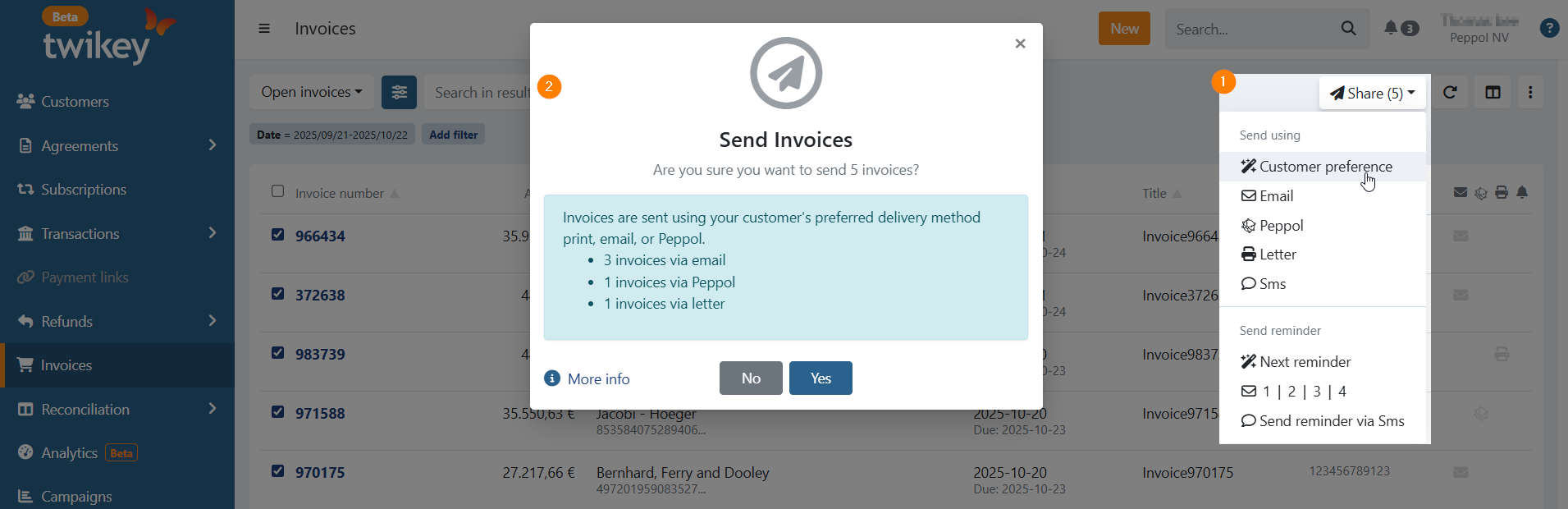
- A popup appears showing the number of invoices and the delivery methods that will be used
- Choose Yes to send the invoices