
How to import customers
- Steps to import
- Importing using a CSV file
- Importing from Exact Online
- Importing from Recurly
- Editing multiple customers by importing ...
What if you already have an existing database of your customers (including information like their address, contact details, preferred language, etc.) and you'd like to use it in your Twikey environment? The best way to do this is by importing this customer database.
Steps to import
- Click on the New button, located on the top of the screen, as shown in the image below:
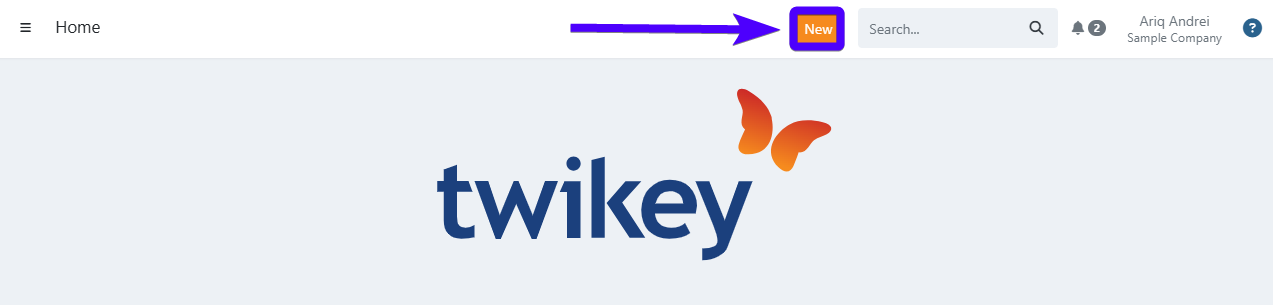
- Click on Import.
- On the Type field, select Customers.
- On the Source field, select the desired import source (CSV file, Exact Online or Recurly). On the guide sections underneath, you can find the explanation for each import source.
- Upload the file to the designated area. Afterward, the customers will be added to your customer list.
Importing using a CSV file
- Download one of our templates - you can find them further below.
- Open the template and input the desired customer data under the corresponding headers. You can find the explanation for each header further below.
- Import the file into your Twikey environment. You can import multiple files in one go.
After the import, you'll receive a notification in your personal e-mail address. This e-mail contains the basic details of the import (such as the import's status and if the import was a failure: the cause & location of the errors).
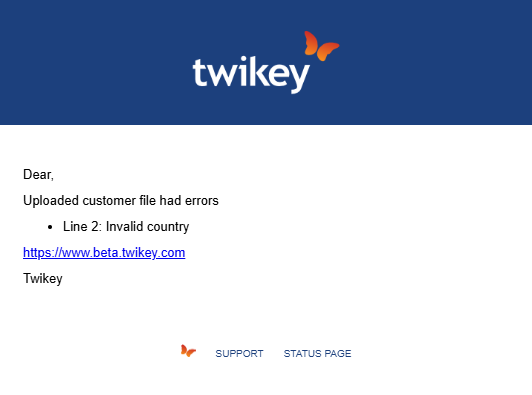
Should the import fails, you'll also receive an error message which explains:
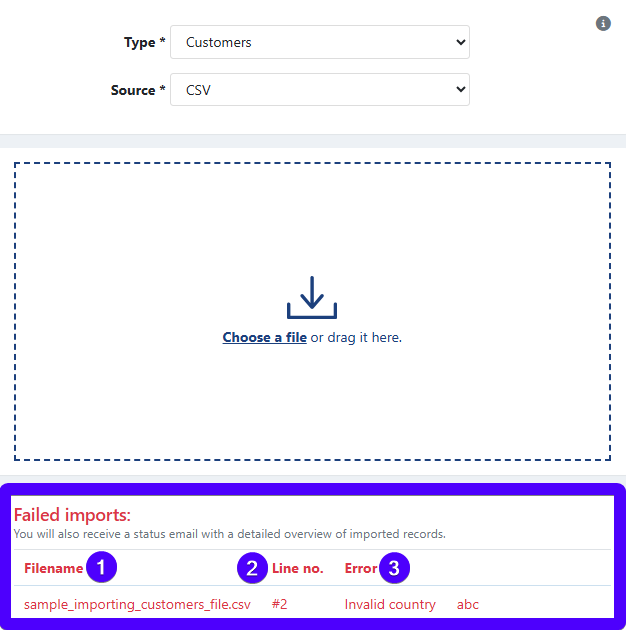
- The name of the CSV file that experiences the error.
- The line (row) in the CSV file that causes the error. Therefore, you can pinpoint the exact location of the error in your CSV file.
- The description of the error.
Templates for importing customers
- Download the customer import template - Excel version
- Download the customer import template - *text editor version
*This version is meant to be viewed & edited using a text editor program, such as Notepad, TextEdit, etc.
Explanation about the headers in the CSV file
| Field | Description |
|---|---|
| customerNumber | A customer number is the number that you/your organization designate to identify a customer. |
| The customer's e-mail address. | |
| l | This represents the customer's language. At the moment, these are the possible languages: en (English), nl (Dutch), fr (French), de (German), it (Italian), es (Spanish), and pt (Portuguese). |
| lastname | The last name of the customer. |
| firstname | The first name of the customer. |
| mobile | The customer's mobile phone number. The international phone number format is preferred if you have customers from multiple countries. For example, a Belgian number starts with +32. |
| companyName | The name of the customer's company. This only applies if the customer is a company-type customer. Otherwise, you can leave it empty. |
| coc | The customer’s Chamber of Commerce number (or more commonly known as enterprise number/ondernemingsnummer/numéro d’entreprise). The enterprise number should only contain letters and numbers (without the dots). For example, a company’s enterprise number is 0123.456.789. In this case, the imported enterprise number is 0123456789. If the customer is a person-type customer, you can leave it empty. |
| vatno | The customer’s VAT (Value Added Tax) number. Only applicable to company-type customers. |
| address | The street & house/building number of the customer. |
| city | The city of the customer. |
| zip | The post code of the customer. |
| country | The customer's country in the 2-character ISO code format. For example: BE for Belgium and NL for the Netherlands. |
When importing customers, please remember:
The firstname, lastname, and companyName headers must exist in the CSV file (although the cells under these headers can remain empty if desired).
We recommend you to always fill in the cells under the customerNumber and the email headers. This will make identifying customers much easier.
Importing from Exact Online
Click here to learn more about importing customers from your Exact Online platform. You can also learn more about Twikey - Exact online integration in general here.
Importing from Recurly
How to import or update customers from Recurly is described in Recurly: Import or update customer
Editing multiple customers by importing them
Besides for adding new customers to your Twikey environment, you can also use the import customers functionality to edit existing customers. This technique is commonly used to edit a large number of customers in one go. These are the steps:
- Export the customers that you’d like to edit.
- Perform the desired edits on the CSV file that you’ve just exported.
- Import this CSV file into your Twikey environment.
The exported file includes the id column by default. When the id column is present, only the columns you include in the file are updated — fields not present in the CSV are left unchanged. You can remove any column you do not want to update before importing.